
Switching Between HTTP and HTTPS
- You can enable or disable HTTPS. When using a System Self-Signed Certificate, download the root certificate from the Admin Console and follow the instructions below to trust it on the client.
- When using a Custom Certificate, enter the certificate and private key information, then save.
- Access is briefly interrupted while the protocol or certificate is being changed. Access the service again after the configuration takes effect.
In the Admin Console, go to “FlightHub Management” → “FlightHub Configuration” → “Security Configuration” to switch between HTTP and HTTPS and manage certificates.
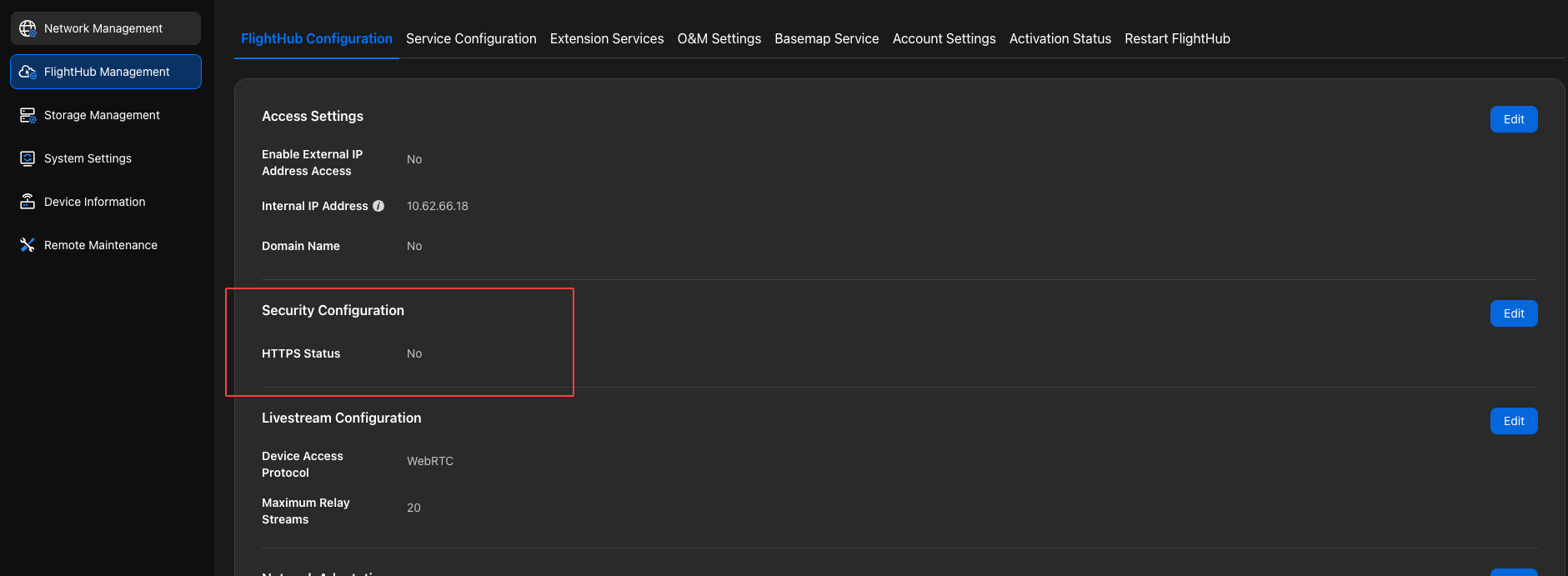
Switching to HTTP
Disable HTTPS under “Security Configuration”.
Note: Browser security policies prevent audio recording from working properly in HTTP mode. Enable HTTPS to use the speaker function.
Switching to HTTPS
Enabling a System Self-Signed Certificate
Enable HTTPS under “Security Configuration” and select “System Self-Signed Certificate” for certificate import.
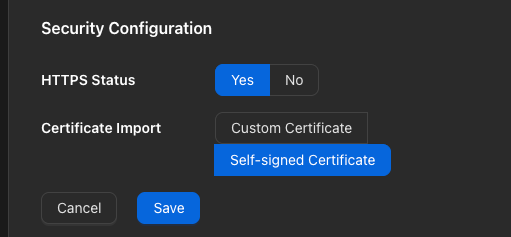
The client browser must trust the self-signed root certificate. Complete the following configuration for your operating system (Linux, macOS, or Windows).
Linux
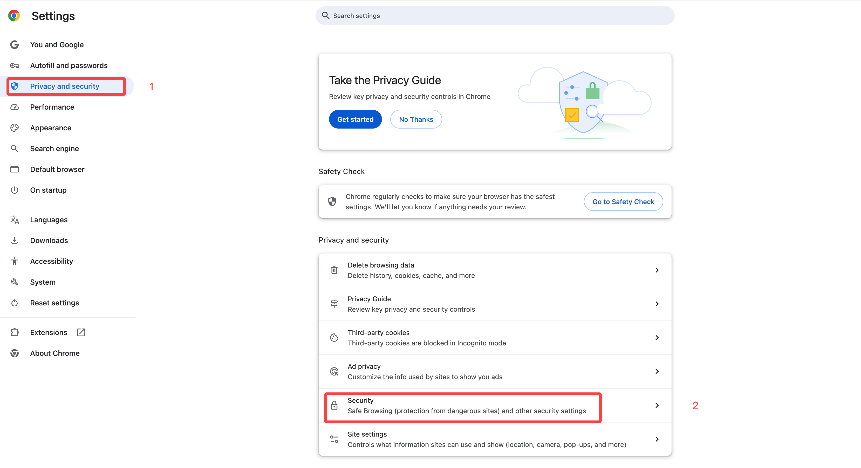
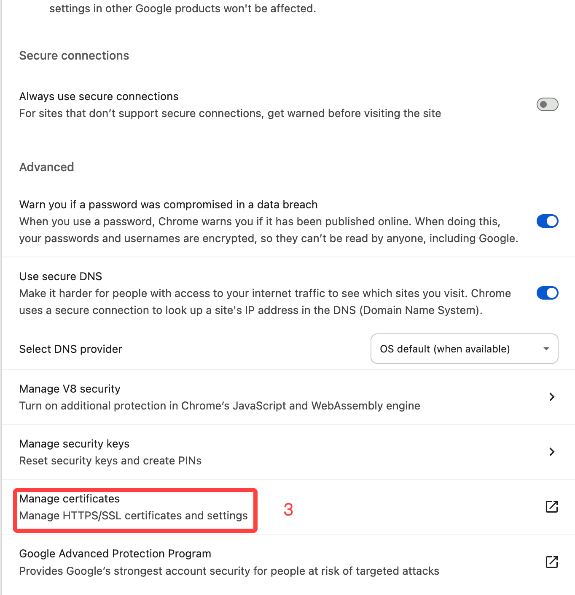
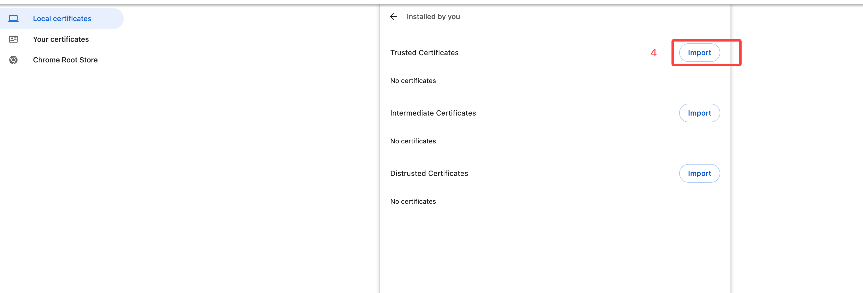
In Chrome on the server and the client computer, go to “Settings” → “Privacy and security” → “Security” → “Manage certificates” and import the self-signed root certificate ca.pem as shown in the screenshots below.
macOS
Double-click the self-signed root certificate
ca.pem. In the dialog, select “System” and click “Add”.Locate the certificate in “Keychain Access”.
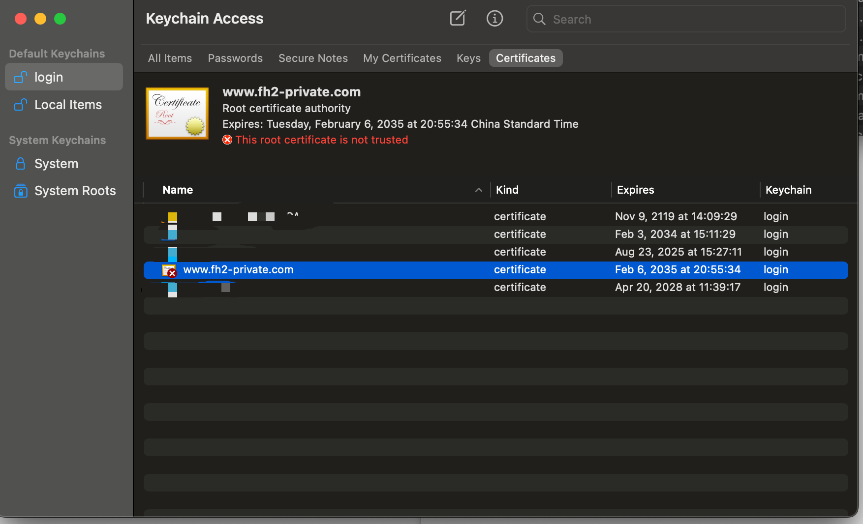
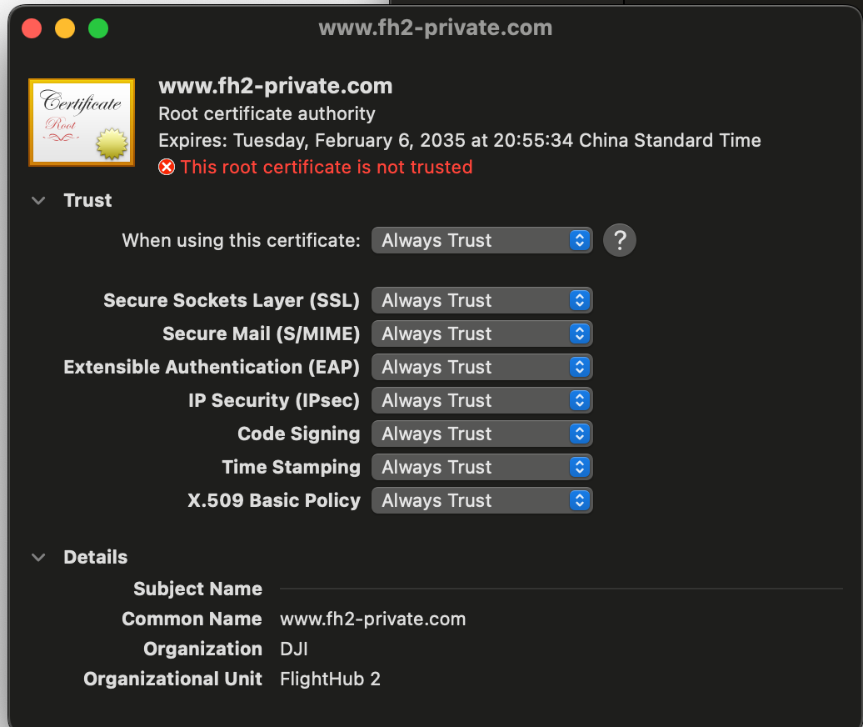
Double-click the certificate. Under the Trust tab, set “When using this certificate” to “Always Trust”, then close the window.
Windows
In Google Chrome (“Settings” → “Privacy and security” → “Security”), locate “Manage certificates”.
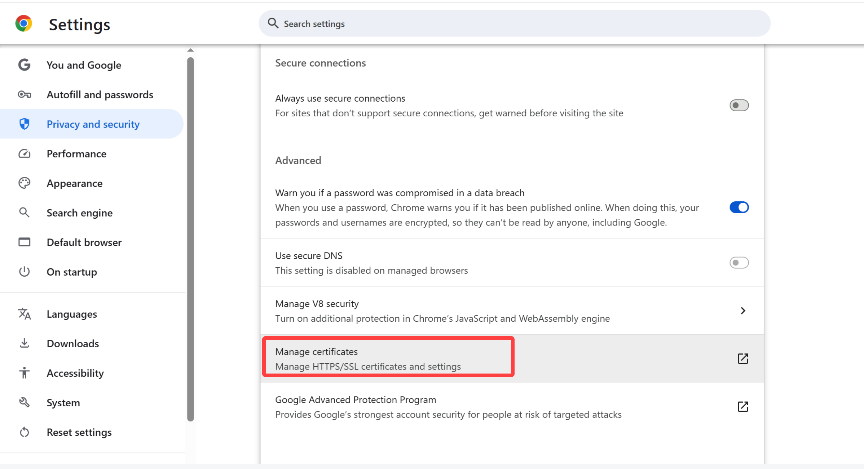
Select “Trusted Root Certification Authorities” and click Import.
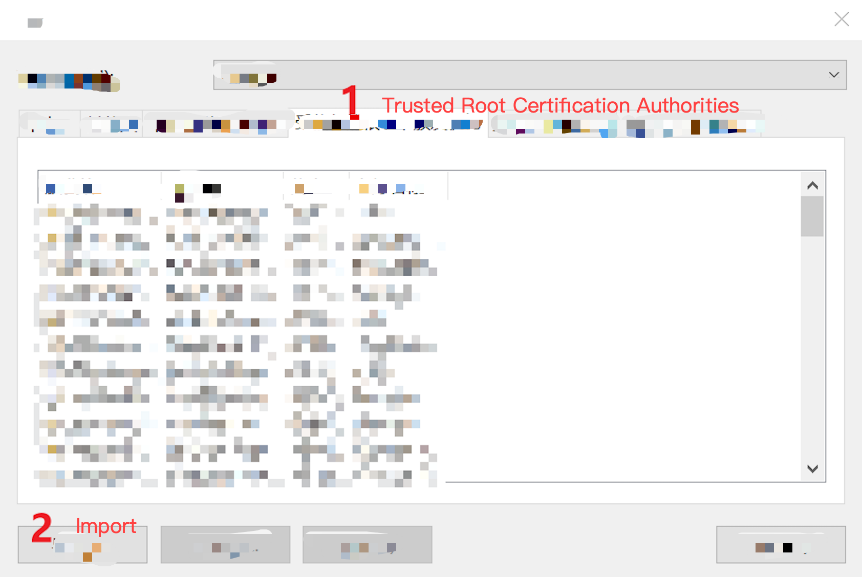
Locate the self-signed root certificate
ca.pemand import it.After the successful import message appears, restart Google Chrome.
Enabling a Custom Certificate
Enable HTTPS under “Security Configuration” and select “Custom Certificate” for certificate import. Enter the custom certificate's CRT and KEY information, then save.
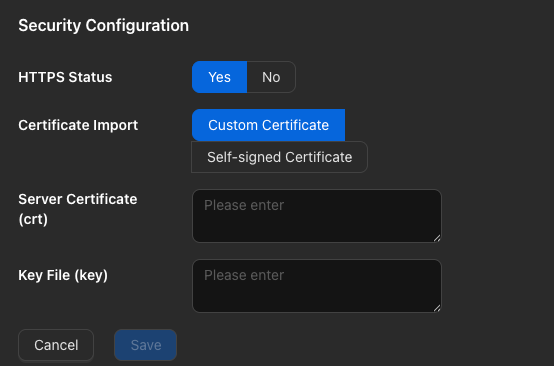
DJI Dock 4 livestream requirements: HTTPS must be enabled for DJI Dock 4 livestreaming. After enabling a Custom Certificate, you must also trust the livestream certificate separately. Refer to the self-signed certificate trust procedure above.
