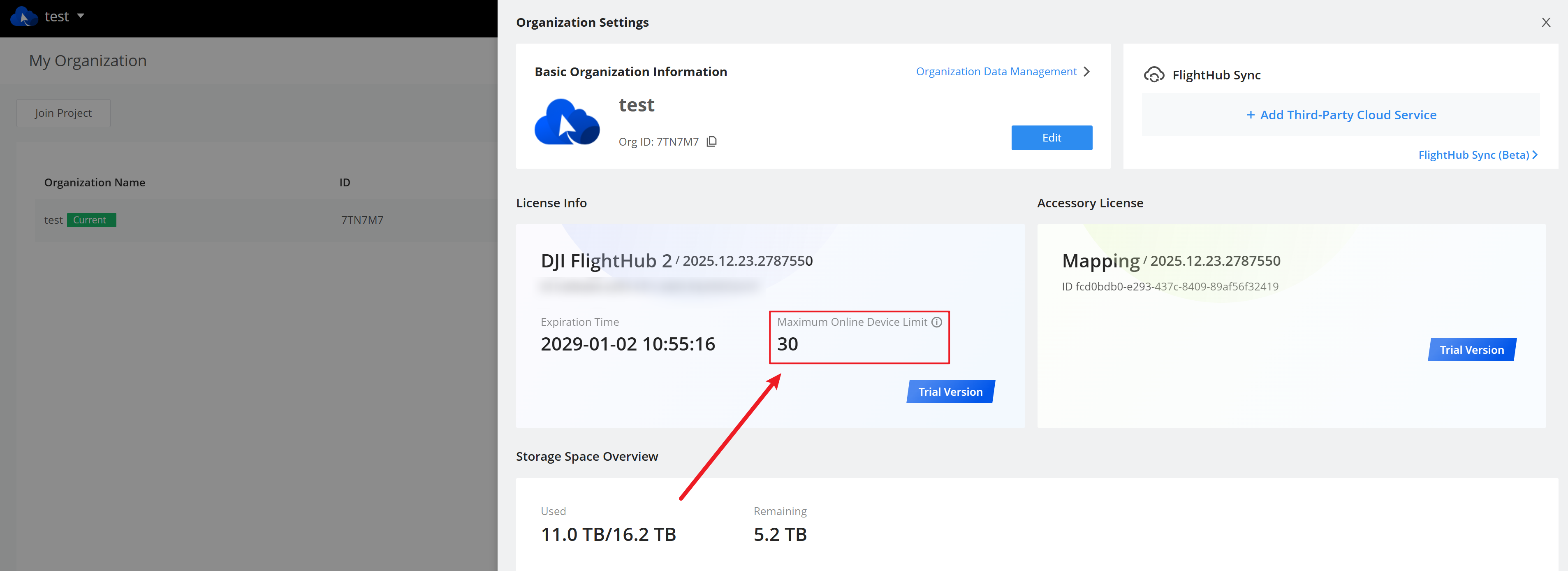
Increasing the Number of Simultaneously Online Devices / License Upgrade
Upgrade Procedure
Contact a qualified local dealer to purchase the service and obtain an activation code.
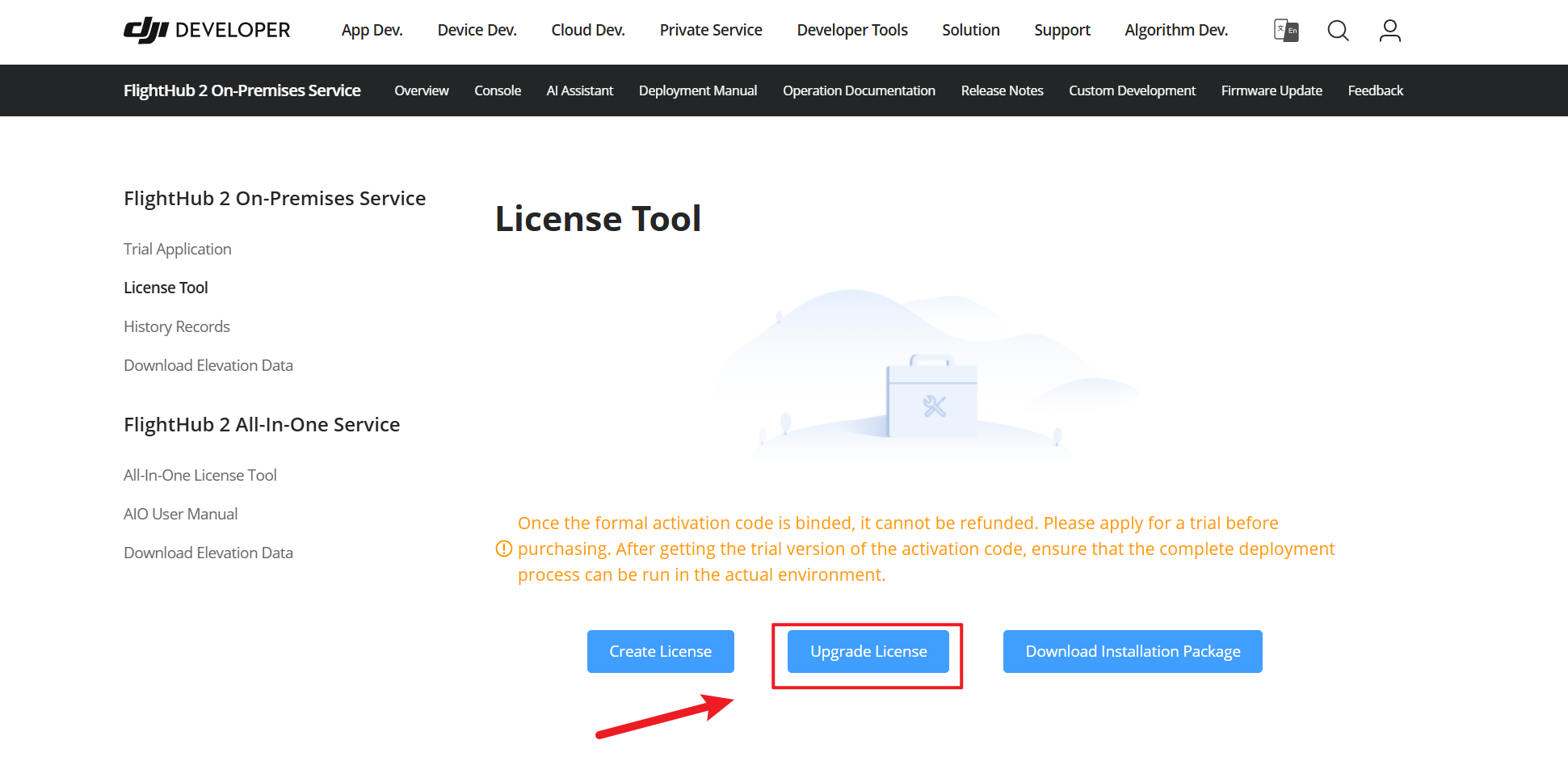
Open the FlightHub 2 On-Premises product page on the developer website. On the License Tool tab, click “Upgrade License”.
After the upgrade, check the License details to confirm that “Supported Simultaneously Online Devices” has been updated.
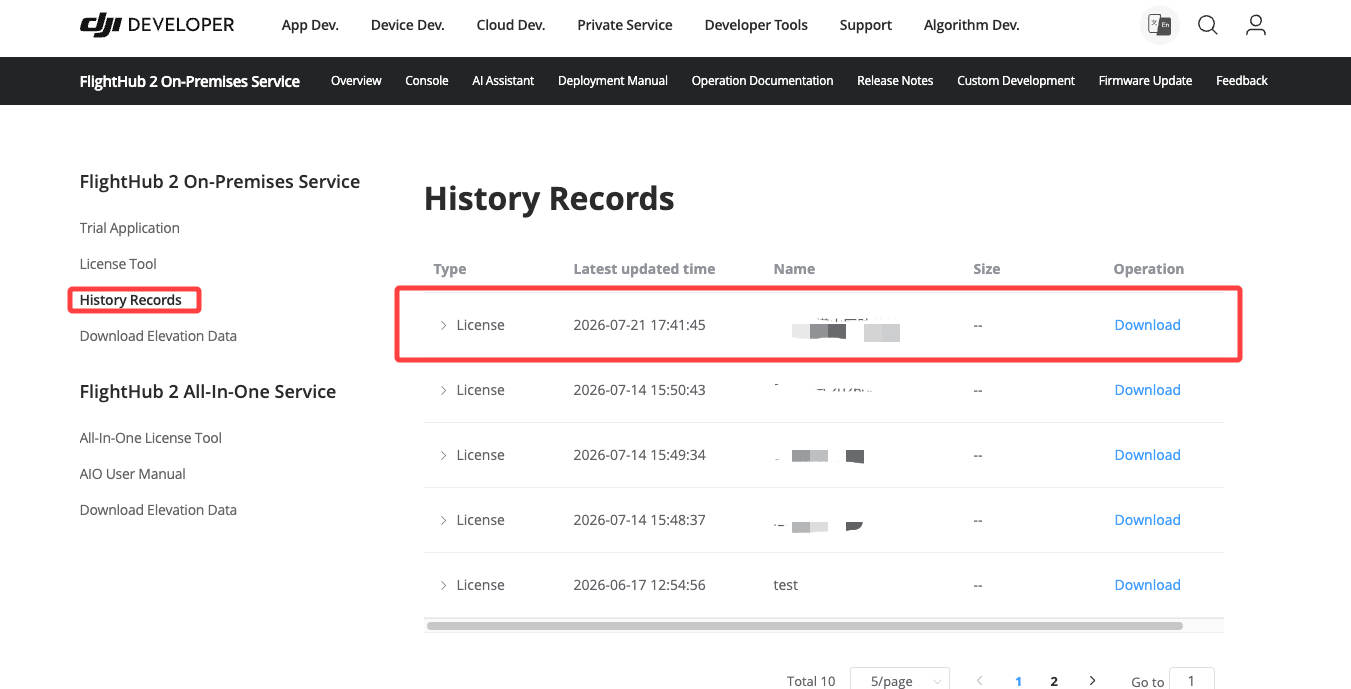
Download the new License from “History” in the Developer Console.
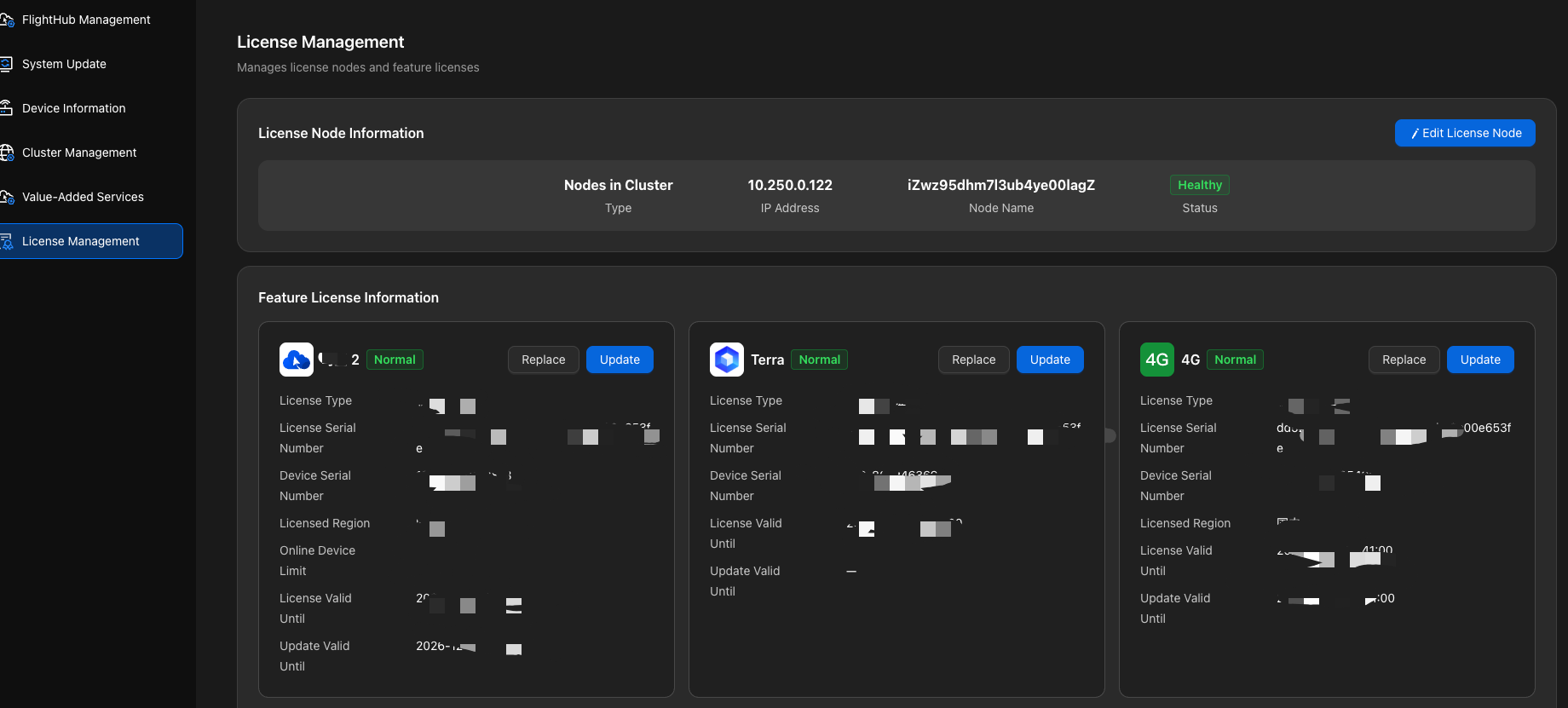
Upgrade the License using either of the following methods:
Visual method (recommended): Upgrade the License for the corresponding product under “License Management” in the Admin Console. If multiple services are deployed, upgrade each separately. For example, if both DJI FlightHub 2 and 4G are deployed, both Licenses must be upgraded.
Command-line method (optional)
Run the following command in the root directory of the installation package for DJI FlightHub 2, 4G, or Terra, replacing
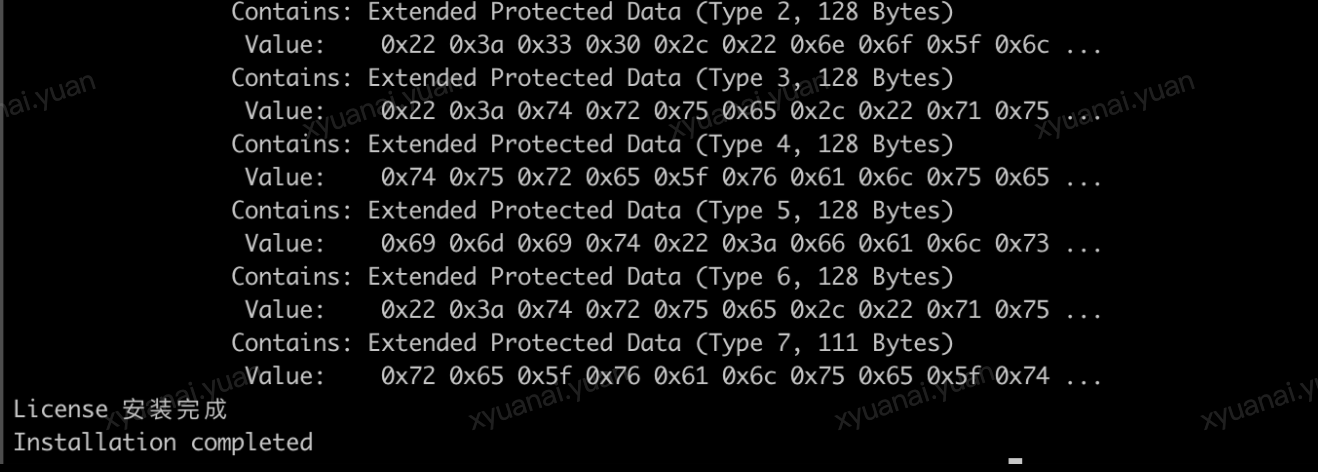
${许可证 license.tar.gz 路径}with the actual path. If multiple services are deployed, perform the License upgrade for each service separately../InstallLicense.sh ${许可证 license.tar.gz 路径}Example output:
- View the License details on the “My Organization” page in FlightHub 2 On-Premises to confirm that the device count has been updated.