Binding Dock to Organization
Creating an Organization
- Open Chrome 120 or later.
- Access the DJI FlightHub 2 homepage configured during deployment:
http://${SERVICE_DOMAIN}:${FRONTEND_TCP_PORT}. Use the domain name or IP and frontend port from the actual deployment configuration. - Log in to the Admin Console and view the initial super administrator account and password under "FlightHub Management" → "Account Settings".
- After logging in to DJI FlightHub 2, create an organization. Only one organization is supported. Confirm the information before creating it.
- Create a project within the organization.
Obtaining Organization ID and Device Binding Code
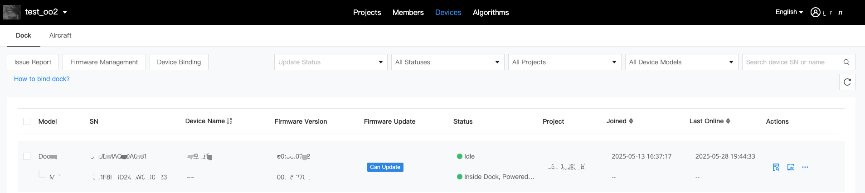
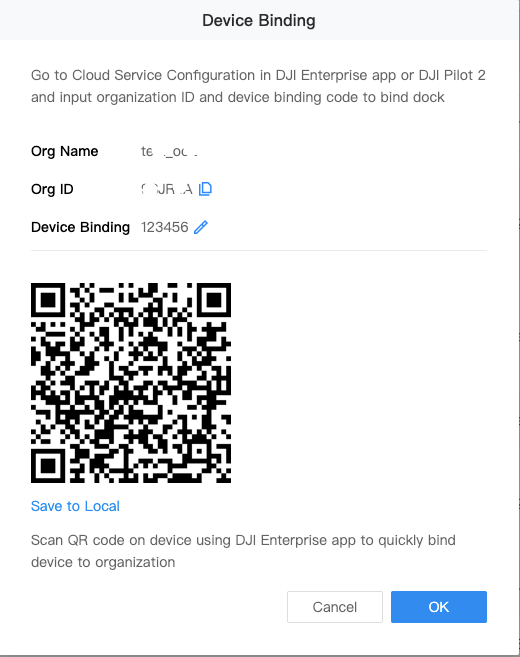
Go to "Devices" → "Dock" and click "Device Binding".
Record the "Organization ID" and "Device Binding Code".
Configuring Cloud Service
Use a USB-A to USB-C cable to connect the remote controller to the dock. Open the DJI Pilot 2 app and go to the dock's "Cloud Service Configuration" page. In "Cloud Service", select "FlightHub 2 On-Premises" and enter the following information:
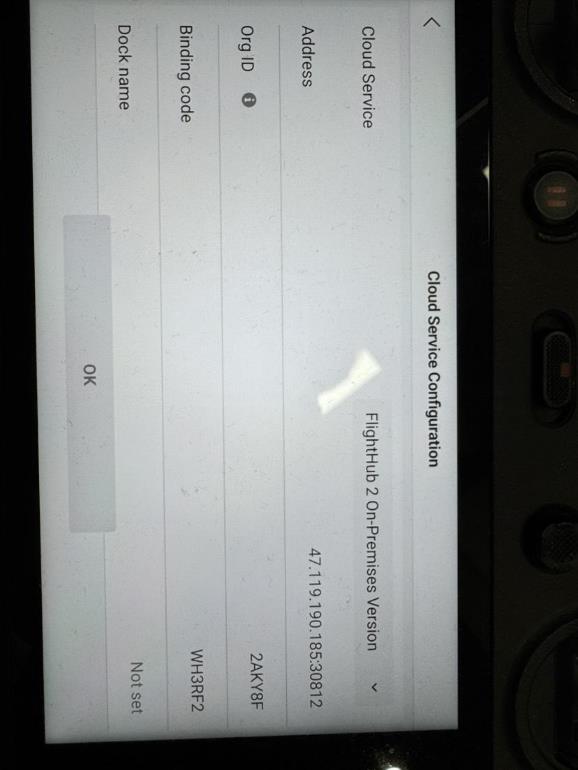
- Access Address:
${SERVICE_DOMAIN}:${BACKEND_TCP_PORT}. Replace this with the domain name or IP and backend port of the actual deployment. - Organization ID: Enter the Organization ID obtained in the previous step.
- Device Binding Code: Enter the Device Binding Code obtained in the previous step.
- Dock Name: Enter the dock name.
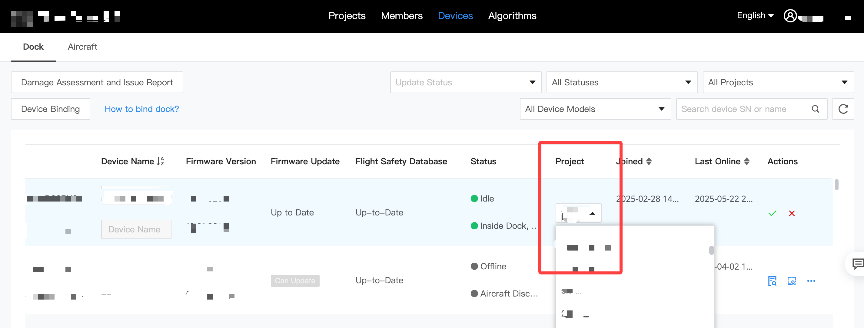
Binding Device to Organization
Select a project in "Project" to complete device binding.