
License Configuration
Select the Authorization Node and license type to complete License Configuration.
Instructions
1. Select the Authorization Node
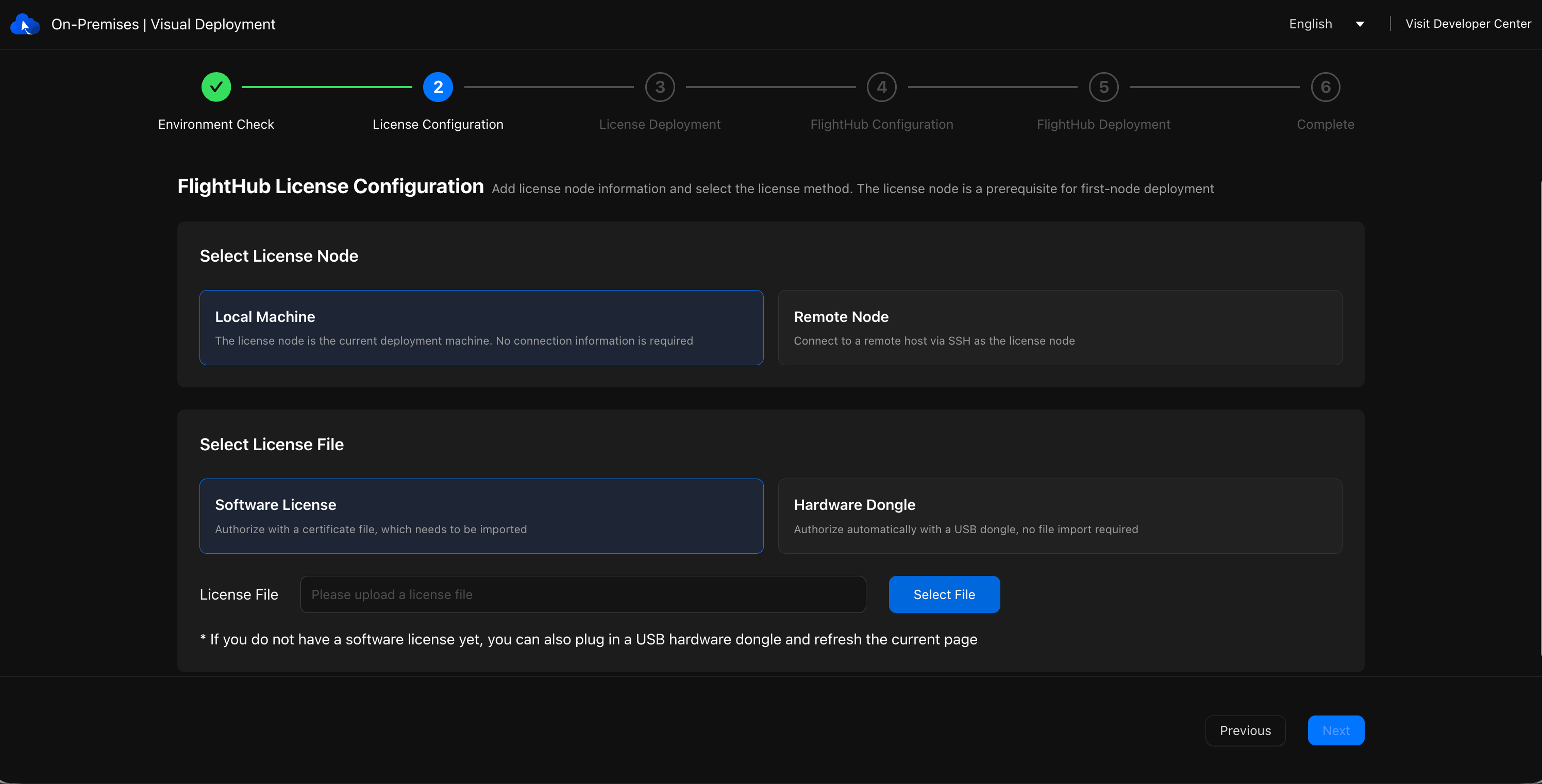
Local Machine: Install the license file on the current target machine.
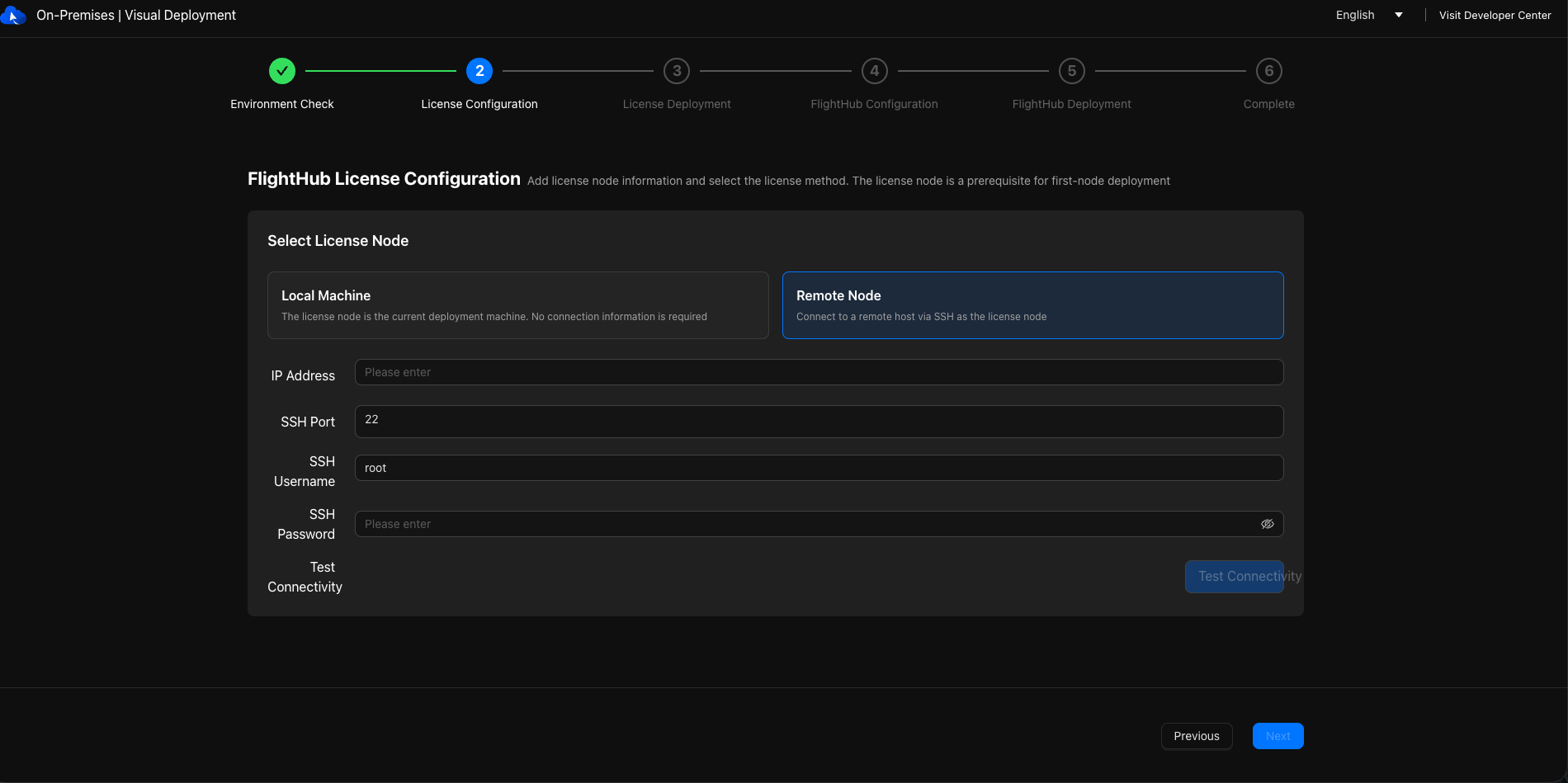
Remote Node: Install the license file on another independent physical server.
- In a cloud server environment, an independent physical server can serve as the remote Authorization Node to accommodate changes to the cloud server's fingerprint.
2. Select the License File
License Type
- Software License: For on-premises products.
- Hardware Dongle: For all-in-one machine products.
Upload the license file and import it into the selected Authorization Node.
Limitations
The license must be installed on a server whose fingerprint matches the fingerprint bound to the license. Otherwise, authorization will fail. For fingerprint generation instructions, refer to the Generating the Server Fingerprint File section.
- Starting with V2.0, licenses for services such as DJI FlightHub 2, Terra, and 4G must be bound to the same server.
- If licenses for a historical version are installed on different servers, contact DJI support to migrate the licenses before upgrading to V2.0.
When selecting a remote node, first pass the connection test to confirm that the target server is reachable and the SSH connection works before proceeding to the next step.
The cluster must be able to access the Authorization Node over
22350/TCP. The environment check verifies this connectivity.