Verifying Features
Clear the browser cache and follow the steps below to verify the features of FlightHub 2 On-Premises: whether elevation data has been imported successfully, whether livestream forwarding works, and whether the FlyTo feature works as expected.
Verifying Elevation Data Import
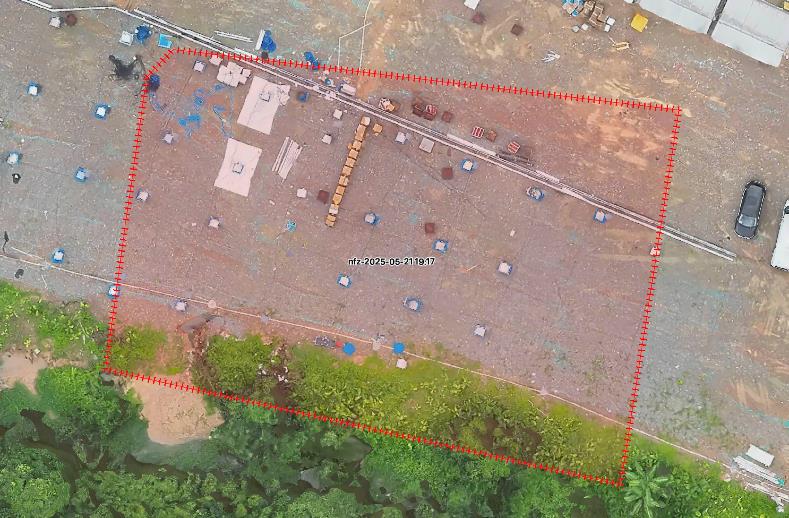
Step 1: Go to the 3D map view on the FlightHub 2 On-Premises interface, adjust the view, and check whether there is a red dashed box as shown below. If the latitude and longitude ranges of the red box are basically consistent with the data ranges you downloaded, it indicates that the elevation data has been successfully loaded.
Note: Avoid operating outside the red dashed box, as this may lead to flight safety risks.
Step 2: Click the circular icon at the bottom right corner of the FlightHub 2 interface. This displays the imported maps. Click to switch between maps and observe whether the map displays properly. If it displays properly, it indicates that the offline map data has been configured successfully. 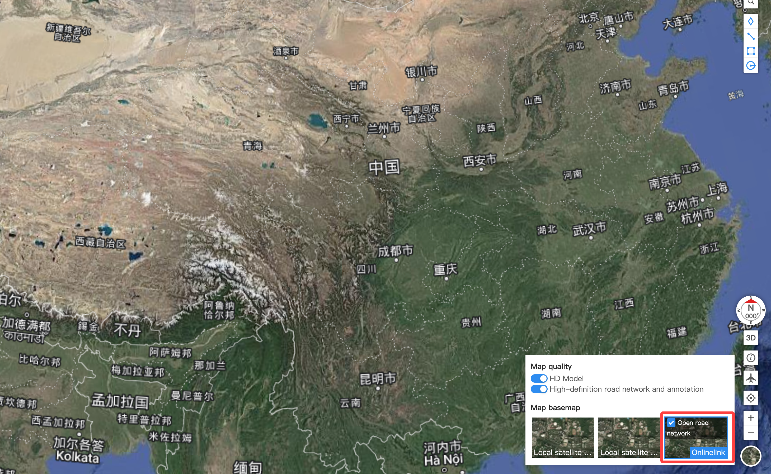
Verifying Livestream Forwarding
Step 1: Click the Team button in the upper left corner, as indicated by the white arrow: 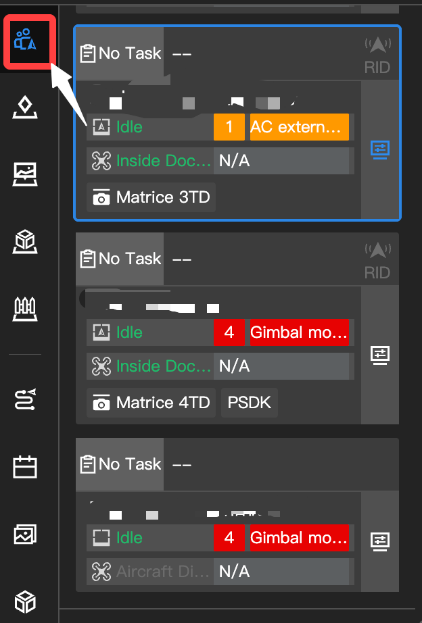
Step 2: Click the pop-up button of the successfully bound dock window, as indicated by the white arrow: 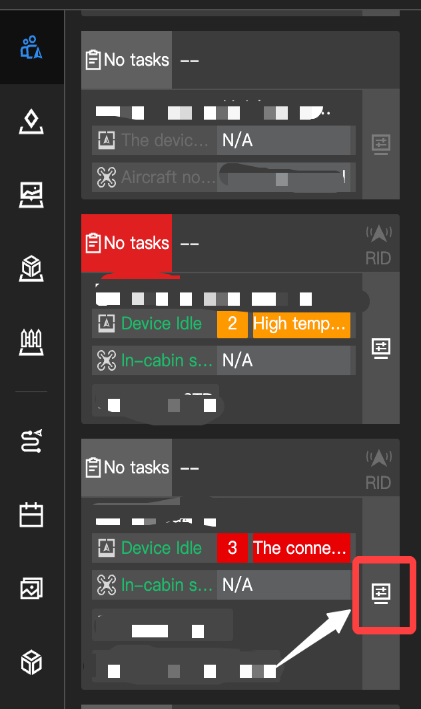
Step 3: In the pop-up device window, click the livestream page pop-up button: 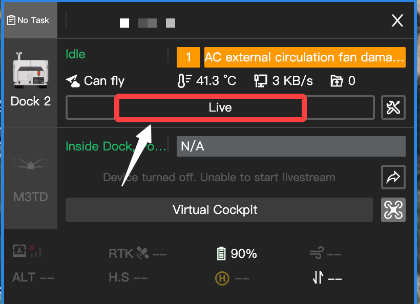
Step 4: Check whether the livestreams for both the dock and the aircraft are functioning properly: 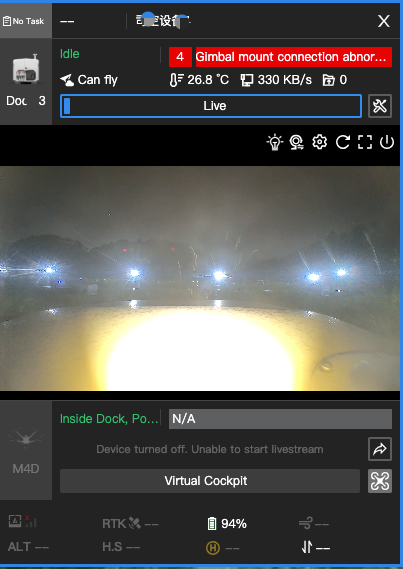
Verifying FlyTo Feature
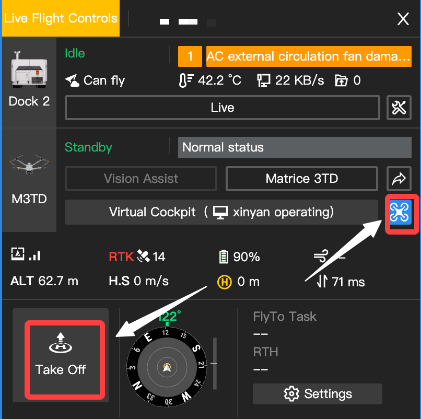
After obtaining the flight control, check whether the FlyTo feature works properly: