
Node Management
Feature Introduction
Cluster Management is the core operations and maintenance module for the Cluster edition of FlightHub 2 On-Premises. It combines multiple servers into a unified Cluster managed from a single console to support large-scale device connectivity and highly concurrent workloads. You can add servers to expand capacity as your business grows.
Key benefits:
- Centralized management: Manage all servers from one console without logging in to each machine individually.
- Elastic scaling: Add servers to expand capacity as your business grows.
- High Availability: Multiple Management Server replicas ensure that a single server failure does not affect overall services.
- Visual operations and maintenance: View health, alerts, and load at a glance to identify and locate issues quickly.
Note: The system automatically identifies and assigns server roles (management / worker) and compute types (CPU / CPU + GPU). No manual configuration is required.
Interface Overview
Go to “Cluster Management” in the DJI FlightHub 2 Admin Console. There are two tabs:
- Cluster Status: An overview of overall Cluster metrics and an alert list.
- Cluster Topology: A graphical view of each server's status and real-time load.
The interface supports manual and automatic refresh (every 30 seconds by default) and displays the last update time.
Cluster Status
The Cluster Status page displays Cluster metrics and a list of alerts for abnormal conditions.
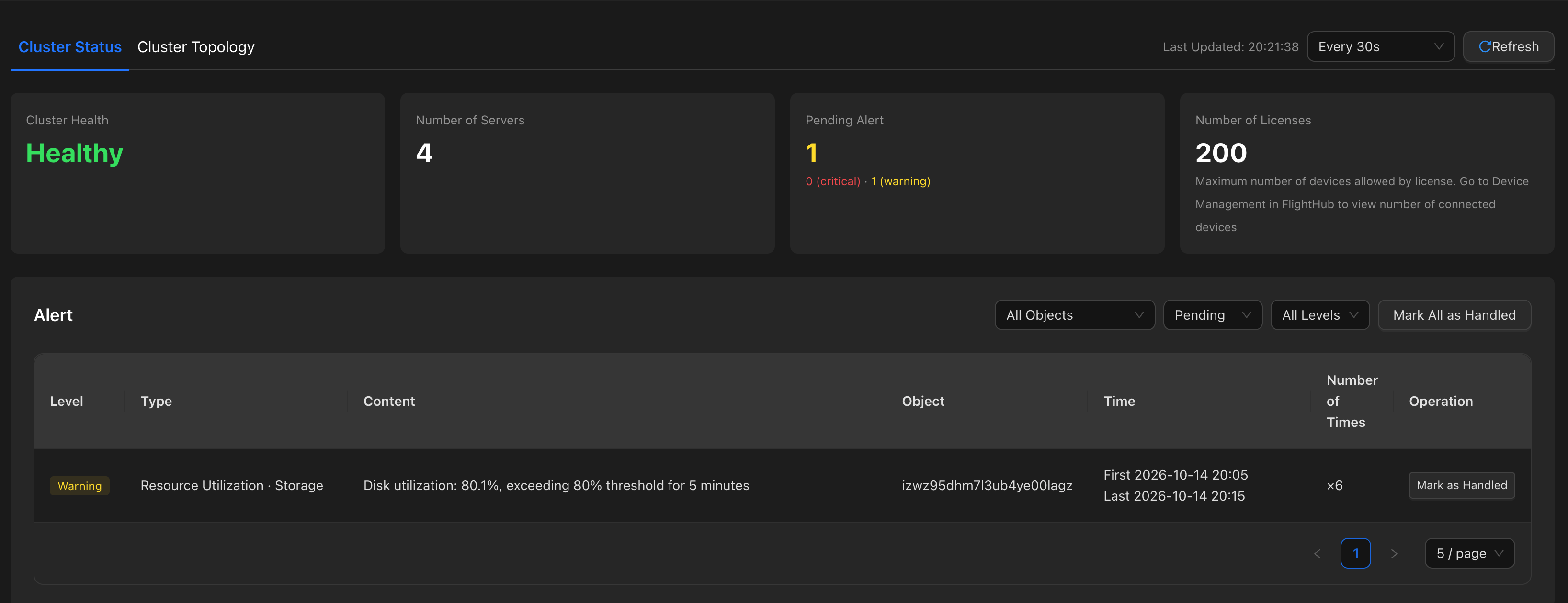
Cluster Metrics
| Metric | Description |
|---|---|
| Cluster Health | Healthy / Degraded / Abnormal. Healthy: Everything is normal. Degraded: Some Worker Servers are offline, but the Cluster remains available. Abnormal: Management Server redundancy is insufficient or there is a licensing issue; immediate action is required. |
| Server Count | The current number of servers in the Cluster, including Management Servers, Worker Servers, and offline servers. |
| Pending Alerts | The current number of unhandled alerts (Critical / Warning). |
| Licensed Device Limit | The maximum number of devices permitted to connect under the License. Go to “Device Management” to view the actual number of connected devices. |
Alerts
- Severity: Critical (requires immediate action) / Warning (early intervention is recommended).
- Types: Degraded Cluster Health, offline server, licensing issue, and excessive resource usage.
- Deduplication: Only one alert is retained for each issue type on the same server. Repeated occurrences only update the count to prevent the list from being flooded.
- Filtering: Filter by handling status (Pending / All), severity, or target (a specific server).
- Handling: Select “Mark as Handled” for an individual alert or “Mark All as Handled”. Handled alerts are removed from the pending list.
Cluster Topology
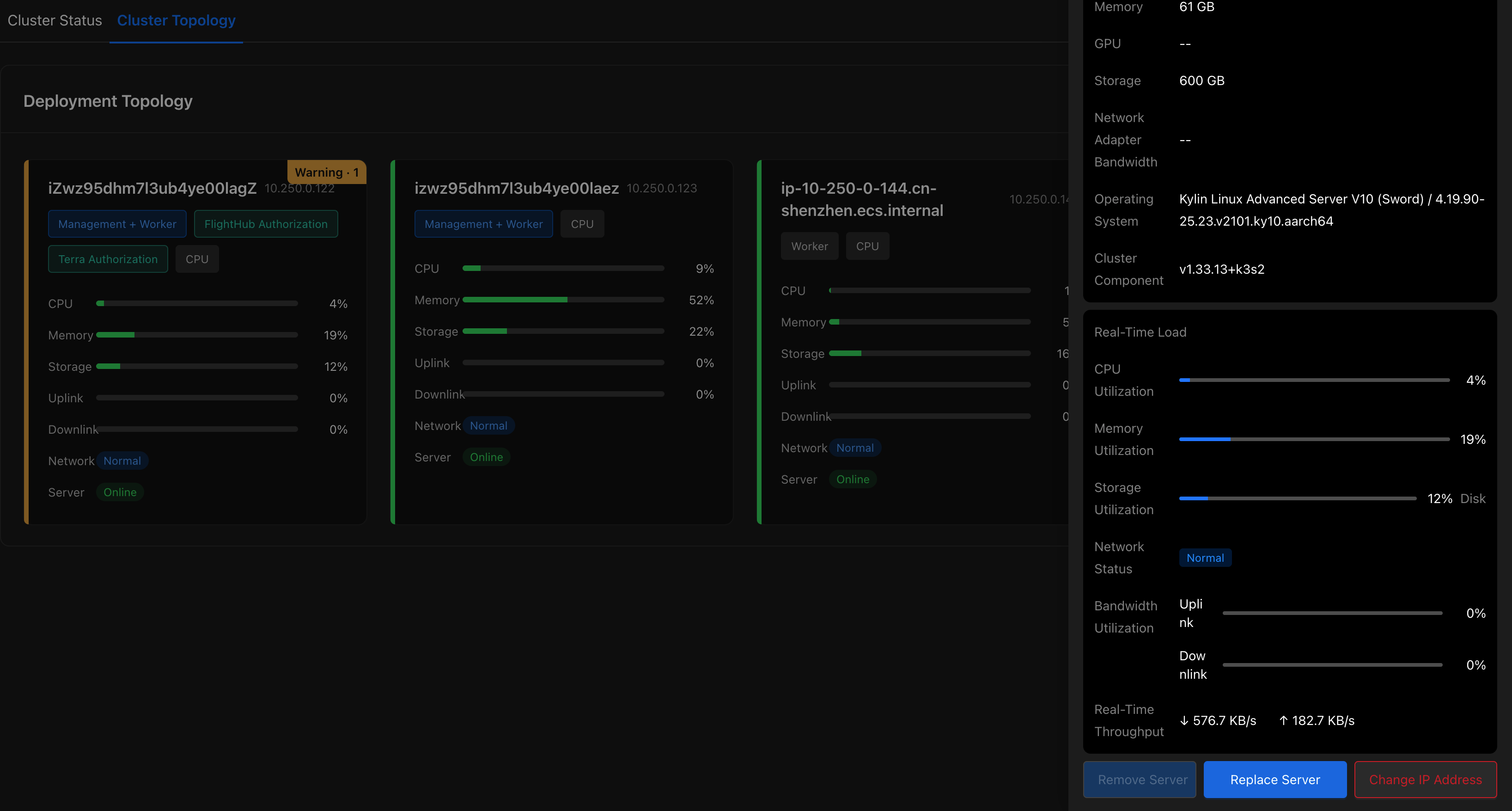
Cluster Topology displays all servers as cards. Each card shows the status (Online / Offline), role and compute type, real-time load (CPU / memory / storage / network), and an alert indicator. When there are pending alerts, the card changes color and displays the alert count.
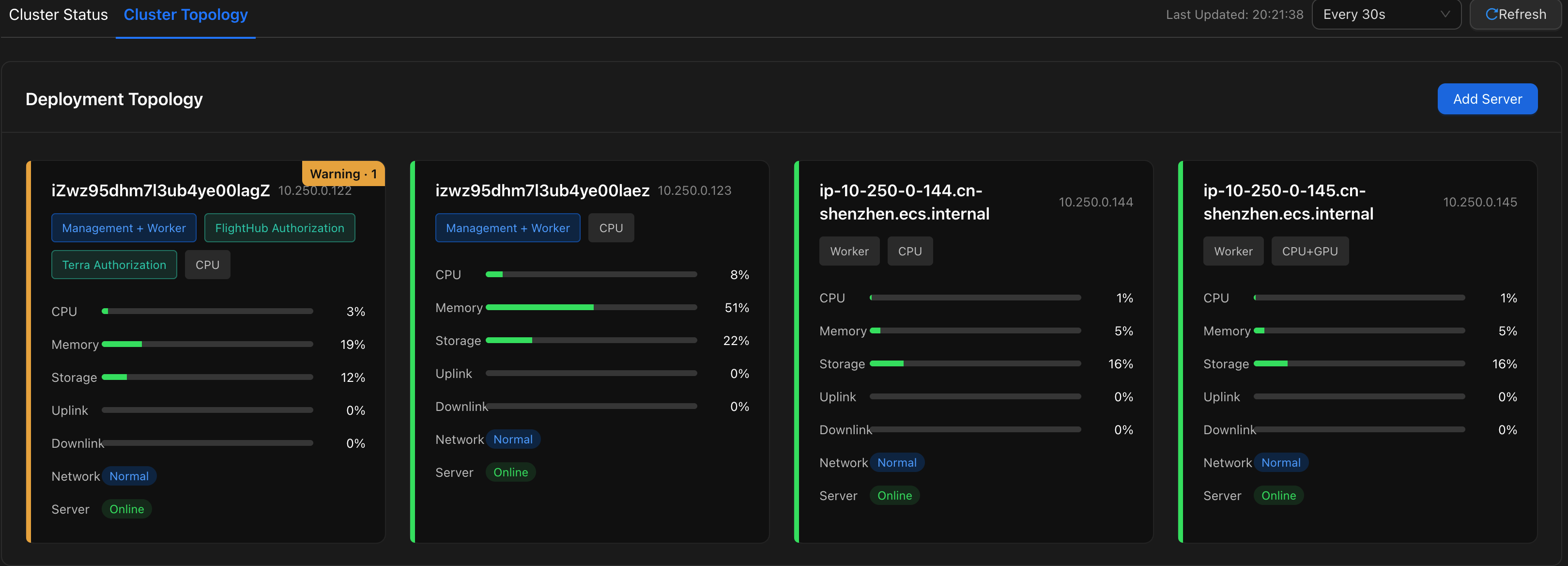
Note: Server status is limited to “Online” / “Offline”. Other issues, such as licensing issues or excessive resource usage, are reported through alerts and shown on the card rather than represented as separate server states.
Add Server (expansion)
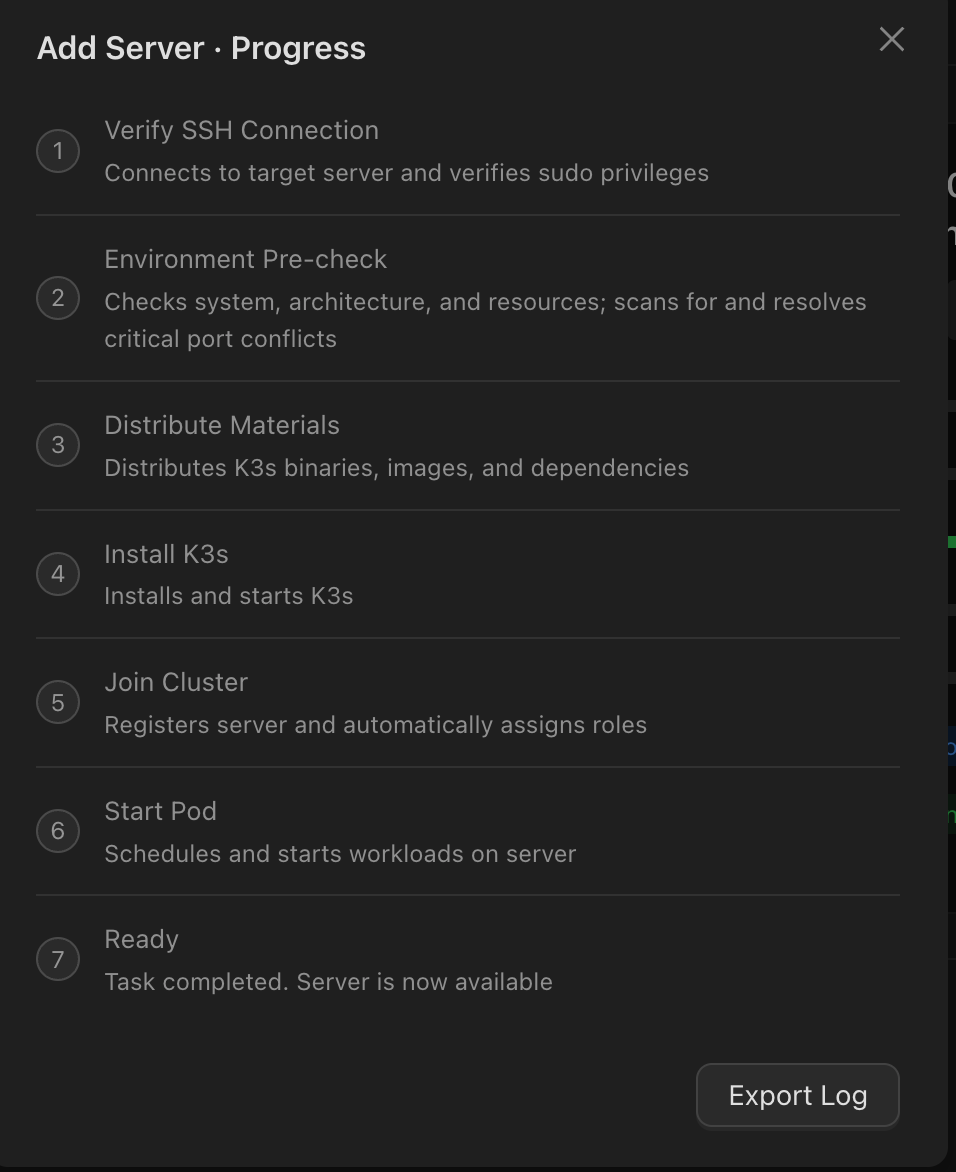
On the Cluster Topology page, click “Add Server” in the upper-right corner, enter the server IP address and login information, and click “Start Adding”. The system automatically installs the software and joins the server to the Cluster. The new machine is automatically assigned as a Worker Server.
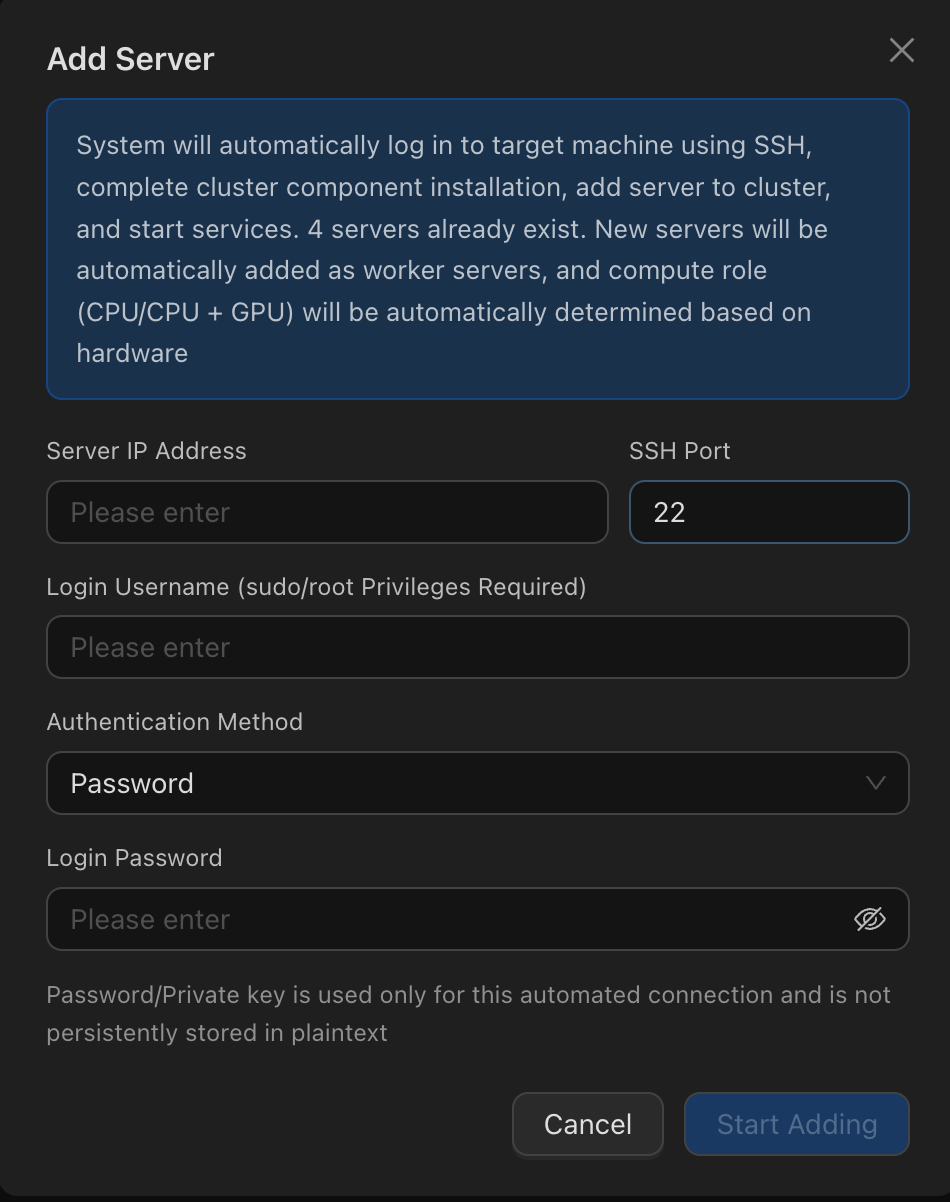
Note: The Licensed Device Limit must be greater than 20. Login credentials are used only for this connection process and are not saved.
Server Details
Click a card to open Server Details and view basic information, hardware specifications, real-time load, and available operations.
Server Operations and Maintenance
On the Server Details page, you can remove a server, replace a server, or change its IP address.
Note: Adding or replacing servers and changing IP addresses are automated workflows with step-by-step progress. Logs can be exported. Failed or interrupted workflows can be rolled back, with progress feedback. Critical stages cannot be interrupted; wait for them to complete.
| Operation | Description | Prerequisites / Notes |
|---|---|---|
| Replace Server | Use a new machine to take over from a failed or retired server. For Management Servers, the system automatically ensures continuity. For an Authorization Node, you must manually reapply for a License; services are switched only after the system confirms readiness. Replace Worker Servers when they are offline or retired. | This operation involves service downtime; a maintenance window is recommended. License applications are handled manually offline. |
| Remove Server | Take a Worker Server offline. | Only Worker Servers can be removed. The Cluster must retain at least 3 servers. Management Servers and Authorization Nodes cannot be removed directly. |
| Change Server IP | A server IP address cannot be changed directly while online. The system changes it through an automated workflow involving service downtime. You only need to enter the new IP address. | This operation involves service downtime. The new address is checked for availability before the change proceeds. For offline servers, use “remove and re-add” or “replace”. |
Notes
- Operations involving service downtime (removal / replacement / IP changes) interrupt related services. Perform them during a maintenance window. A second confirmation is required before execution.
- The Cluster must retain at least 3 servers. Adding servers requires a Licensed Device Limit greater than 20.
- Replacing the Authorization Node requires an offline application for a new License and installation of that License.
- Server roles and compute types are assigned automatically by the system and cannot be changed manually.
- Safeguards: High-risk operations require a second confirmation, and failed operations can be rolled back. When switching services, checks must pass before services are changed, leaving the existing Cluster unaffected.