
Upgrading Historical Versions to V2.0
This chapter is for users who need to retain existing business data, including organizations, projects, media, flight routes, and maps, when upgrading to the V2.0 Cluster edition on the original server. The workflow is: offline backup → old environment cleanup → fresh V2.0 installation → data import → service verification. Complete and verify the backup before cleaning up the old environment to prepare the original server for V2.0 installation. Plan a migration maintenance window and verify data integrity after migration.
Before Upgrading
Review the deployment changes: V2.0 differs significantly from historical versions. First read About the DJI FlightHub 2 Cluster and Quick Start.
Use one Authorization Node: Starting with V2.0, Licenses for DJI FlightHub 2, Terra, and 4G must be bound to the same server.
- If the Licenses for your existing deployment are installed on different servers, contact after-sales support to migrate them before upgrading.
- Use trial Licenses to verify service stability after migration. Migrate production Licenses only after confirming that migration succeeded and services are running stably.
Retain the original backup: Back up and retain the historical version's data so that you can reinstall that version and restore its data if necessary.
Process Overview
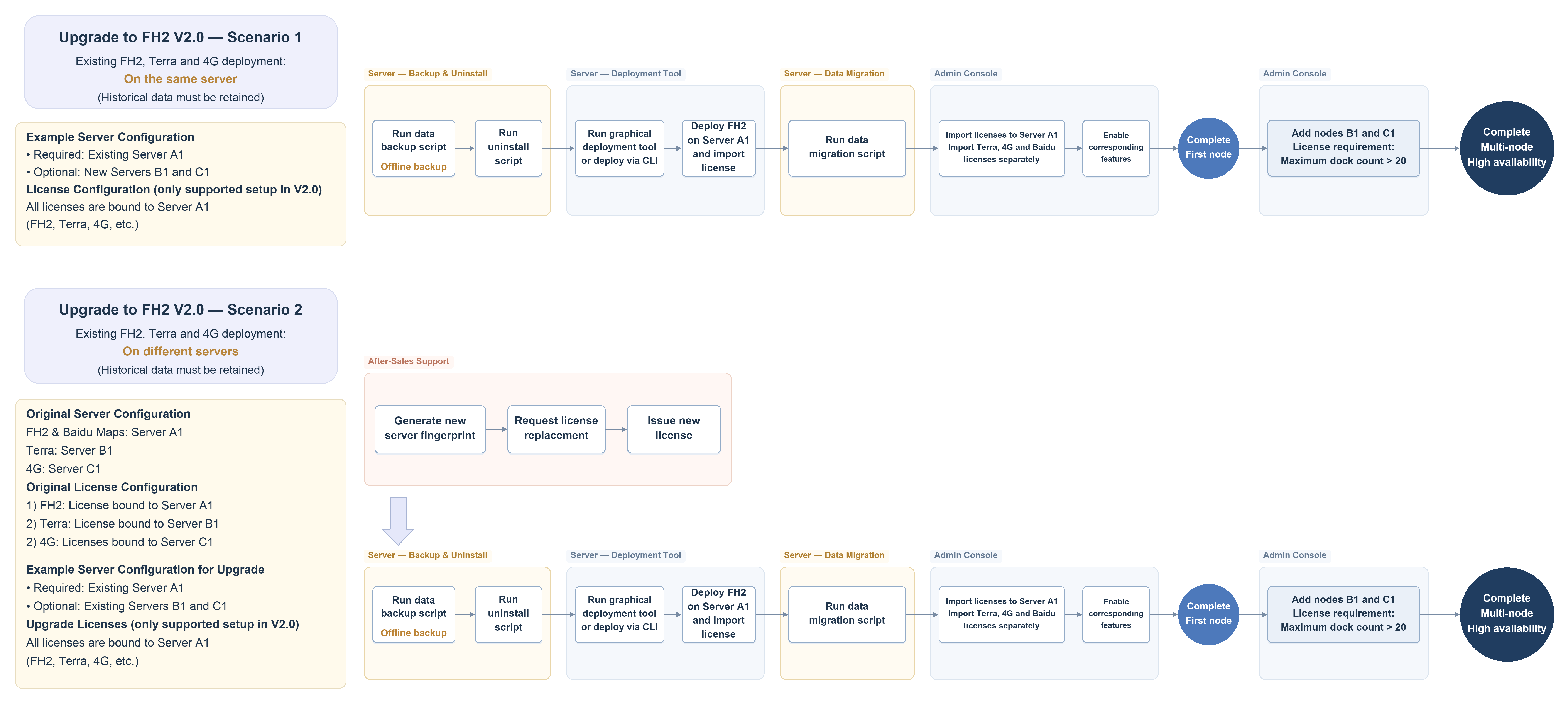
Both the diagram and the procedure below describe reusing the original server: complete and verify the backup, then clean up the old environment and install V2.0.
Migration Procedure
Use fh2-backup.sh, fh2-restore.sh, and environment-clean.sh from the V2.0 materials package. Run the scripts as root from their directory on the appropriate server. The backup script stops the relevant business services during backup and restarts the old services when it finishes. Work within the migration maintenance window, and suspend business use and data writes after the backup completes until migration is complete.
Assess the migration. Confirm that the target server meets the V2.0 hardware and operating system requirements. Review the data volume, estimate the migration time, and notify the relevant personnel of the maintenance window.
Back up data on the old standalone DJI FlightHub 2 server; services are stopped during backup. Back up configuration, databases, object storage, and static files, and prepare the data for migration to the Cluster edition. Choose one of the following modes, depending on whether you need a full archive of the data directory. Verify and retain the backup after completion:
# 转换旧版司空格式数据为集群格式数据,同时备份原格式司空数据 ./fh2-backup.sh -f <备份目录位置> # 转换旧版司空数据为集群格式数据 ./fh2-backup.sh -f <备份目录位置> --skip-data-pathParameters:
-f(--force) clears the existing backup directory before writing. Replace<备份目录位置>with a dedicated backup directory; do not use a directory containing other data.--skip-data-pathskips the full archive of the data directory. Other migration data is still backed up according to the script's rules.Clean up the old environment on the old standalone server. After completing and verifying the backup, clean up the old environment to prepare the original server for V2.0 Cluster installation:
# 清理旧版司空的运行环境
./environment-clean.sh
Execution behavior: The cleanup script runs without interactive confirmation by default and uninstalls the old services in a fixed order. Complete and verify the backup before running cleanup. Once cleanup is complete, proceed to installation in step 4.
Perform a fresh installation of the V2.0 Cluster. After completing the old environment cleanup in step 3, follow Quick Start to install the V2.0 Cluster on the original server.
Import data on the new DJI FlightHub 2 Cluster. Use the migration import tool to import the backup. It handles differences between standalone and Cluster data structures, such as merging databases with the same name, importing map tiles, and rebuilding indexes:
# 将备份数据导入到新版司空 ./fh2-restore.sh -f <备份目录位置>Parameters:
-f(--force) skips overwrite confirmation and imports data directly. Replace<备份目录位置>with the actual backup directory, and ensure that the Cluster Node running the import can access it.Verify services and data. Log in to the platform and verify organizations, projects, devices, media, flight routes, and maps. Confirm that docks, aircraft, and other devices have reconnected, and check functions using representative business scenarios.