
Overview
DJI Pilot Plugin
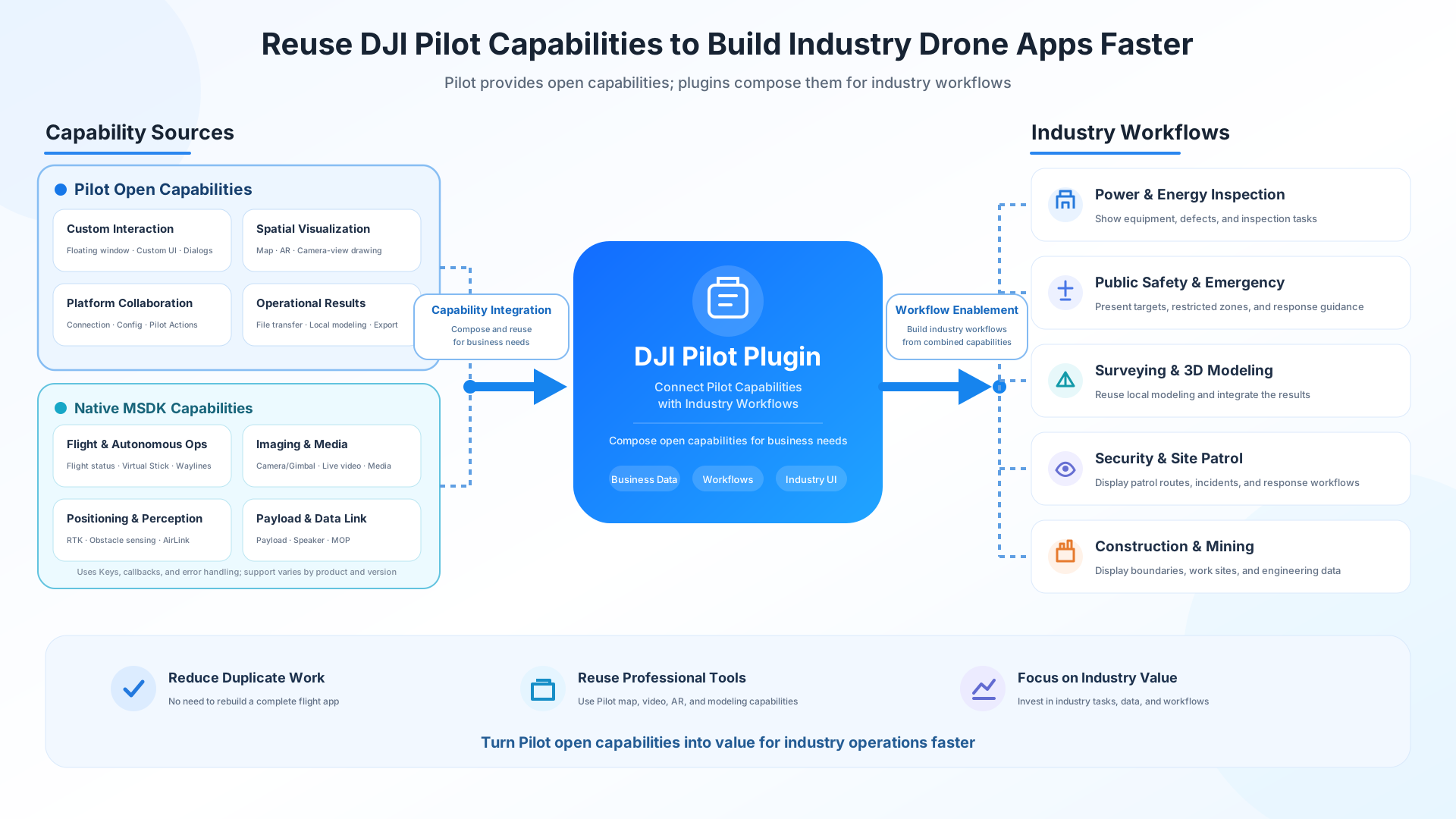
DJI Pilot Plugin extends MSDK into the DJI Pilot operating environment. Developers can package enterprise tasks, data, and workflows as an Android plugin, install it on a remote controller with a screen, and run it alongside Pilot.
Pilot handles foundational operations such as flight, video, and maps, while the plugin handles industry-specific logic. Through MSDK, the plugin reuses Pilot's hardware and open capabilities and provides business interactions within the plugin floating window and the scope of Pilot's open UI capabilities.
Why Use DJI Pilot Plugin?
When developing a standalone app with traditional MSDK, teams usually need to build foundational capabilities such as device connectivity, video display, map rendering, flight interaction, and operational UI.
For teams with mature industry systems that are extending their workflows to drone operations for the first time, this means not only integrating their own tasks, data, and processes, but also building the foundation of a flight app. That leads to longer development cycles and higher ongoing maintenance costs.
DJI Pilot Plugin does more than reduce duplicate development. It lets industry applications directly use professional capabilities already available in Pilot:
- Video and AR: Display targets, defects, risk areas, and operational guidance over the camera view.
- Map capabilities: Show task points, inspection routes, restricted areas, and industry geospatial data.
- Local modeling: Monitor modeling status, obtain modeling results, and integrate them into enterprise result-management workflows.
- Business interaction: Use the plugin floating window, custom components, dialogs, and page navigation for task confirmation, information entry, and workflow guidance.
Teams can therefore focus development on industry tasks, data, and workflows instead of rebuilding a complete flight application.
Note: DJI Pilot Plugin is suitable for adding industry capabilities to existing Pilot workflows. If the entire product experience and interaction model of the flight app must be customized, a standalone MSDK application remains the better choice.
What Does It Bring to Industry Operations?
DJI Pilot Plugin extends existing industry systems to the remote controller, helping operators access task information and complete required confirmation, recording, and response actions during flight operations.
| Operational stage | How it helps | Example capabilities |
|---|---|---|
| Before operation | Present task areas, target locations, operating rules, and resource readiness | Map widgets, plugin floating window, custom UI components |
| During operation | Highlight targets, risk areas, and response steps in open map or camera-view areas | AR projection, camera-view drawing, map widgets, dialogs |
| After operation | Export results, confirm outcomes, and connect them with business systems | File transfer, local modeling, native MSDK capabilities |
| Industry scenario | How DJI Pilot Plugin can help |
|---|---|
| Power-line and wind-turbine inspection | Mark towers, equipment, and defects; display inspection routes and task points |
| Public safety, firefighting, and emergency response | Display target locations, restricted zones, and on-site response guidance |
| Surveying and modeling | Present operating areas, monitor modeling status, and obtain modeling results |
| Security and site patrol | Display patrol tasks, incident locations, and response rules |
| Construction and mining | Display site elements, area boundaries, and operational data |
Available Capabilities
| Capability category | Included capabilities | Purpose |
|---|---|---|
| Pilot open UI capabilities | Plugin floating window, custom UI components, map widgets, AR projection, camera-view drawing, dialogs, and page navigation | Present business information and handle interactions within Pilot's open scope |
| Pilot platform capabilities | Plugin connection status, service configuration, Pilot actions, local modeling, and file transfer | Support runtime collaboration between the plugin and Pilot |
| Native MSDK capabilities | Key operations, wayline missions, video streams, and more | Access aircraft capabilities through Pilot |
For the complete capability list, interface descriptions, and examples, see the Capability Map.
How Does It Differ from a Standalone MSDK App?
| Comparison | Standalone MSDK app | DJI Pilot Plugin |
|---|---|---|
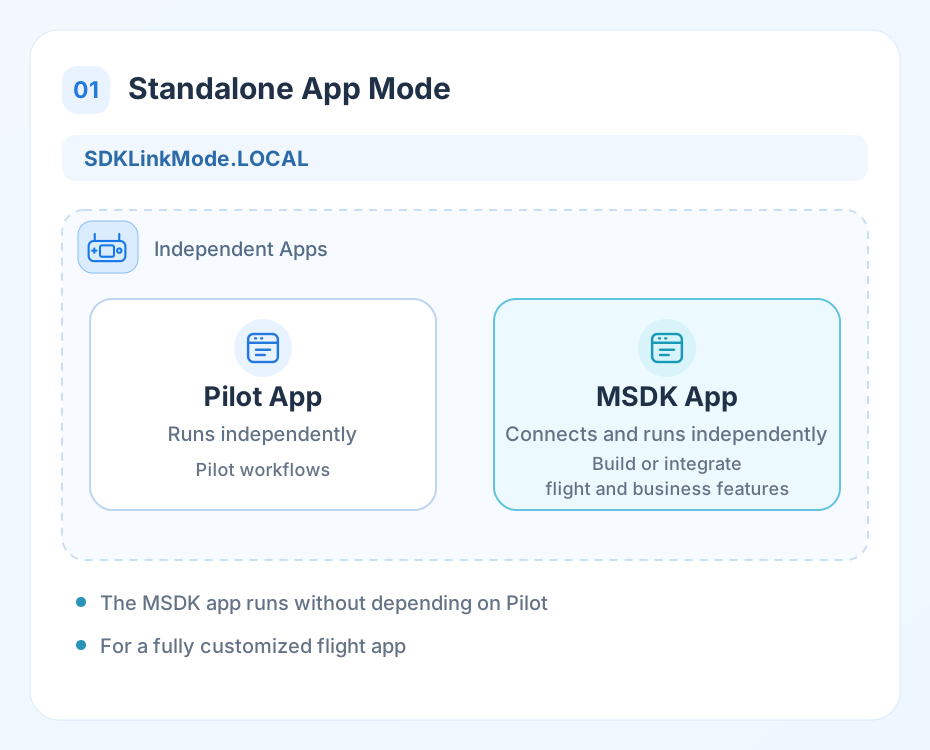
| Application model | A standalone flight application | An industry plugin that runs alongside Pilot |
| Flight and operational foundation | Built or integrated by the developer | Reuses Pilot's open flight, video, map, AR, and modeling capabilities |
| Development focus | Build both flight and industry capabilities | Focus on industry tasks, data, and workflows |
| Relationship with Pilot | Connects and runs independently | Accesses hardware through Pilot and provides business interaction through the plugin floating window and within Pilot's open UI capabilities |
| Best suited for | A fully customized flight application | Extending industry capabilities within Pilot workflows |
How Do Pilot and the Plugin Work Together?
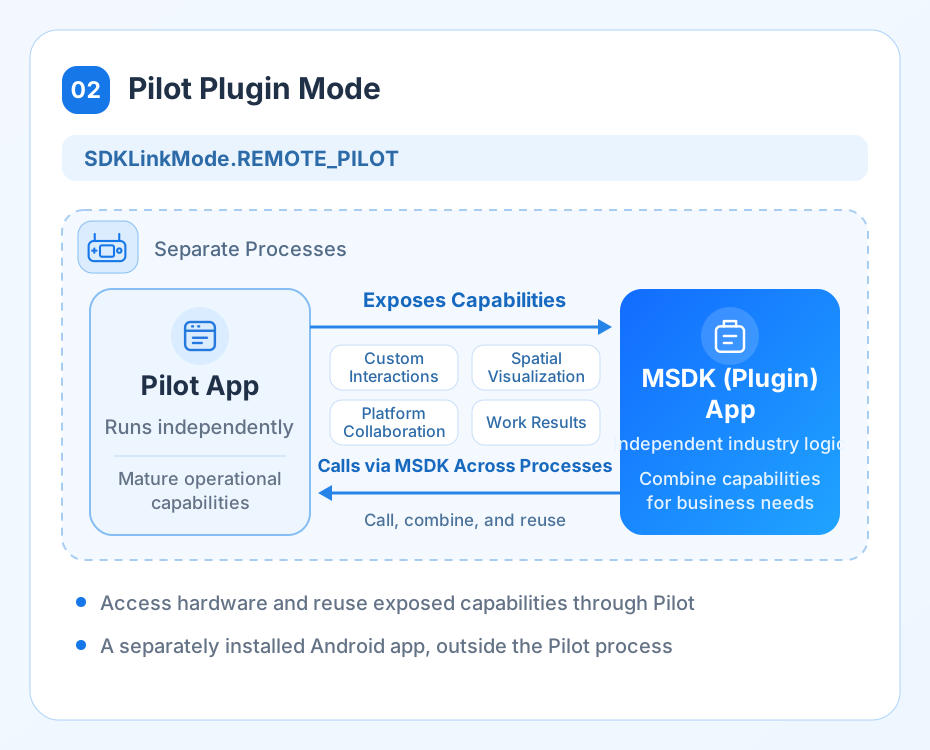
The plugin is an independent Android application installed on a remote controller with a screen. It runs in a separate process from Pilot and collaborates with Pilot through MSDK's inter-process mechanism.
| Component | Responsibility |
|---|---|
| Plugin process | Runs industry logic, including task processing, data integration, and business workflows |
| Pilot process | Maintains the aircraft connection and provides flight, video, map, and other operational capabilities |
| MSDK | Handles communication between the plugin and Pilot, hiding inter-process details from developers |
When MSDK is initialized with SDKLinkMode.REMOTE_PILOT, the application runs in Pilot plugin mode. Except for the link mode and the additional Pilot open capabilities, MSDK Keys, callbacks, error codes, and registration follow the same development model as a standalone MSDK app.
Note: A plugin cannot freely modify or take over Pilot's existing UI. UI interaction must use the capabilities Pilot makes available, such as the plugin floating window, custom UI components, map widgets, AR projection, camera-view drawing, dialogs, and page navigation.
How Is a Plugin Used in Pilot?
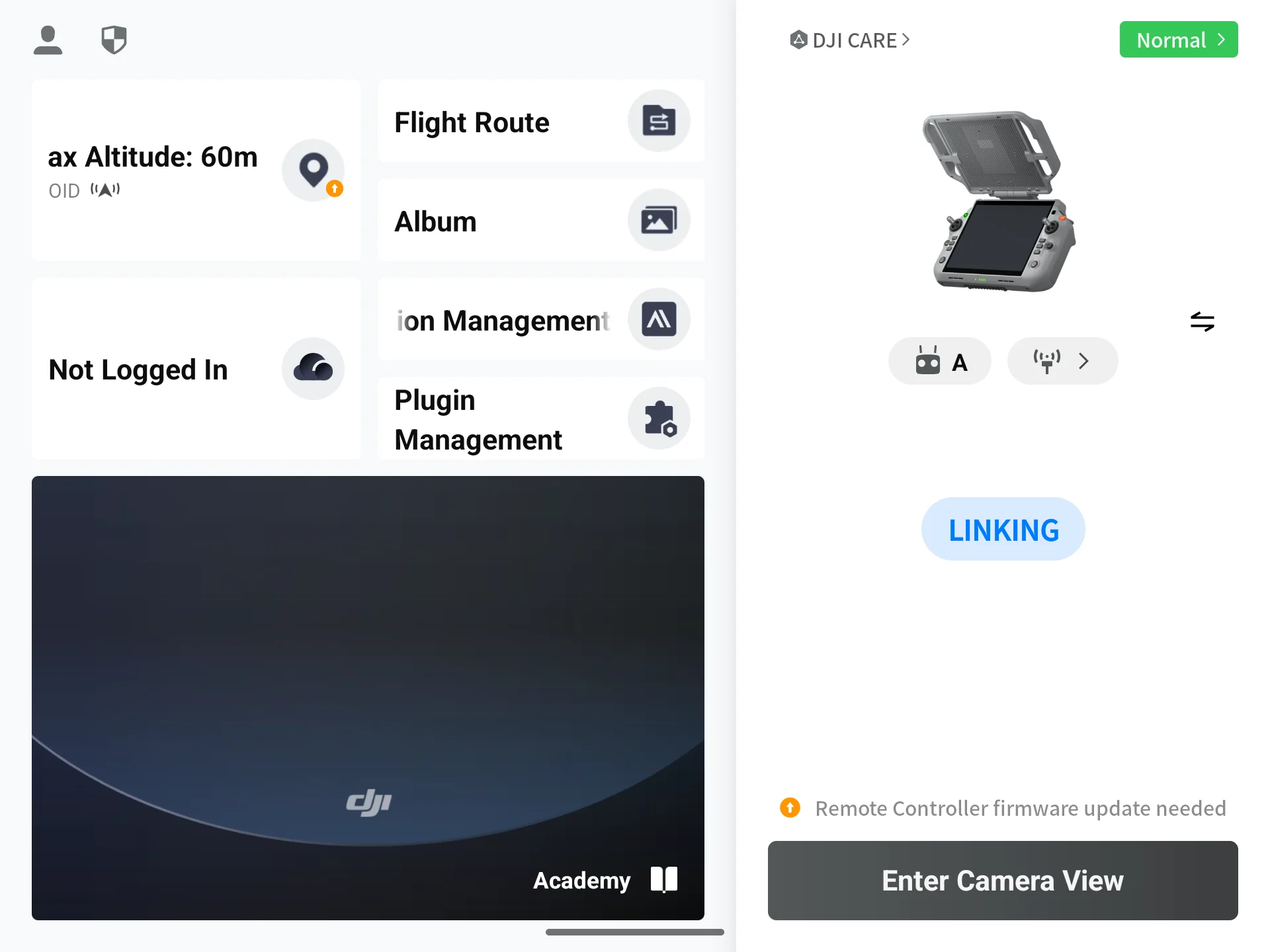
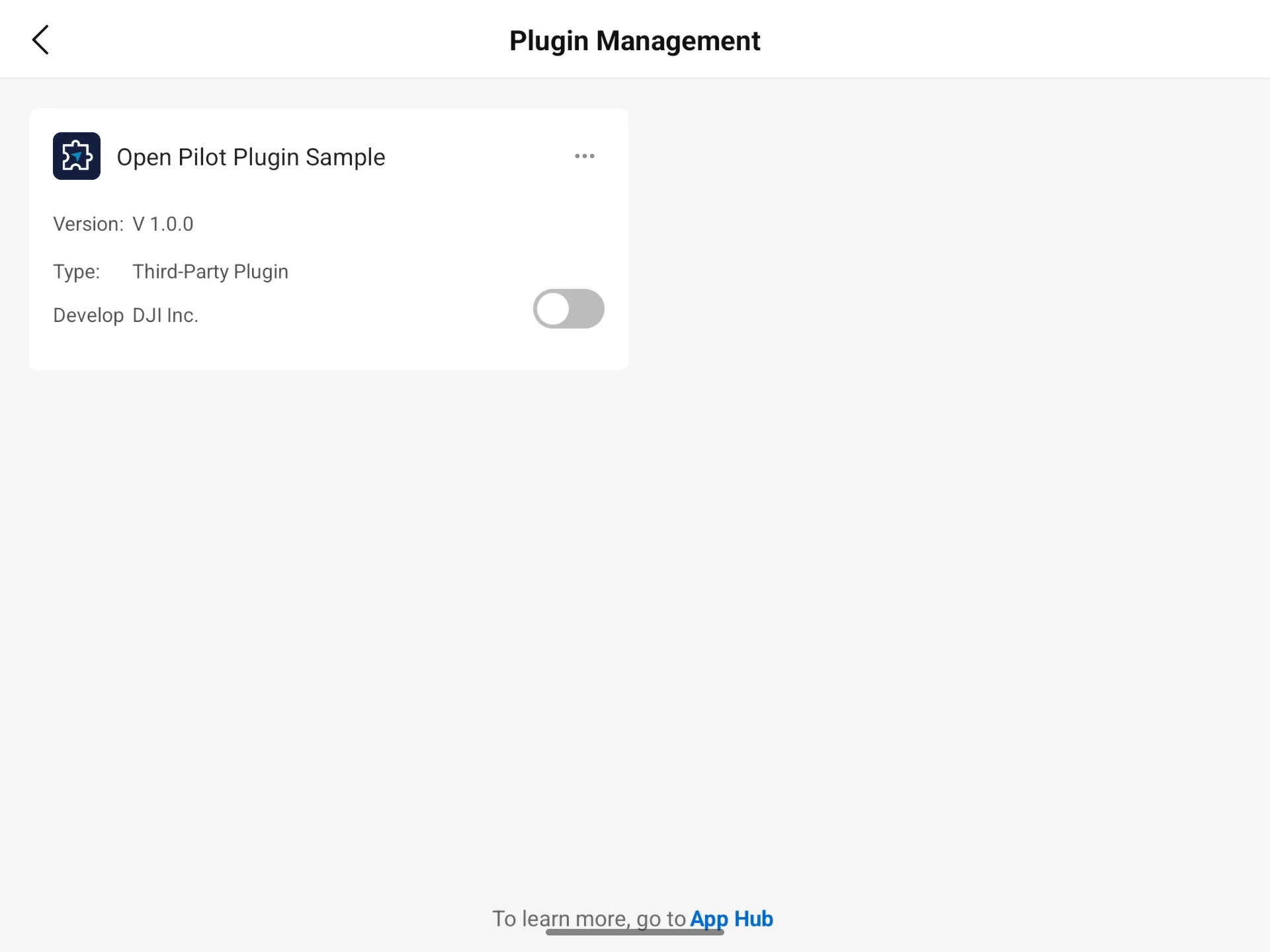
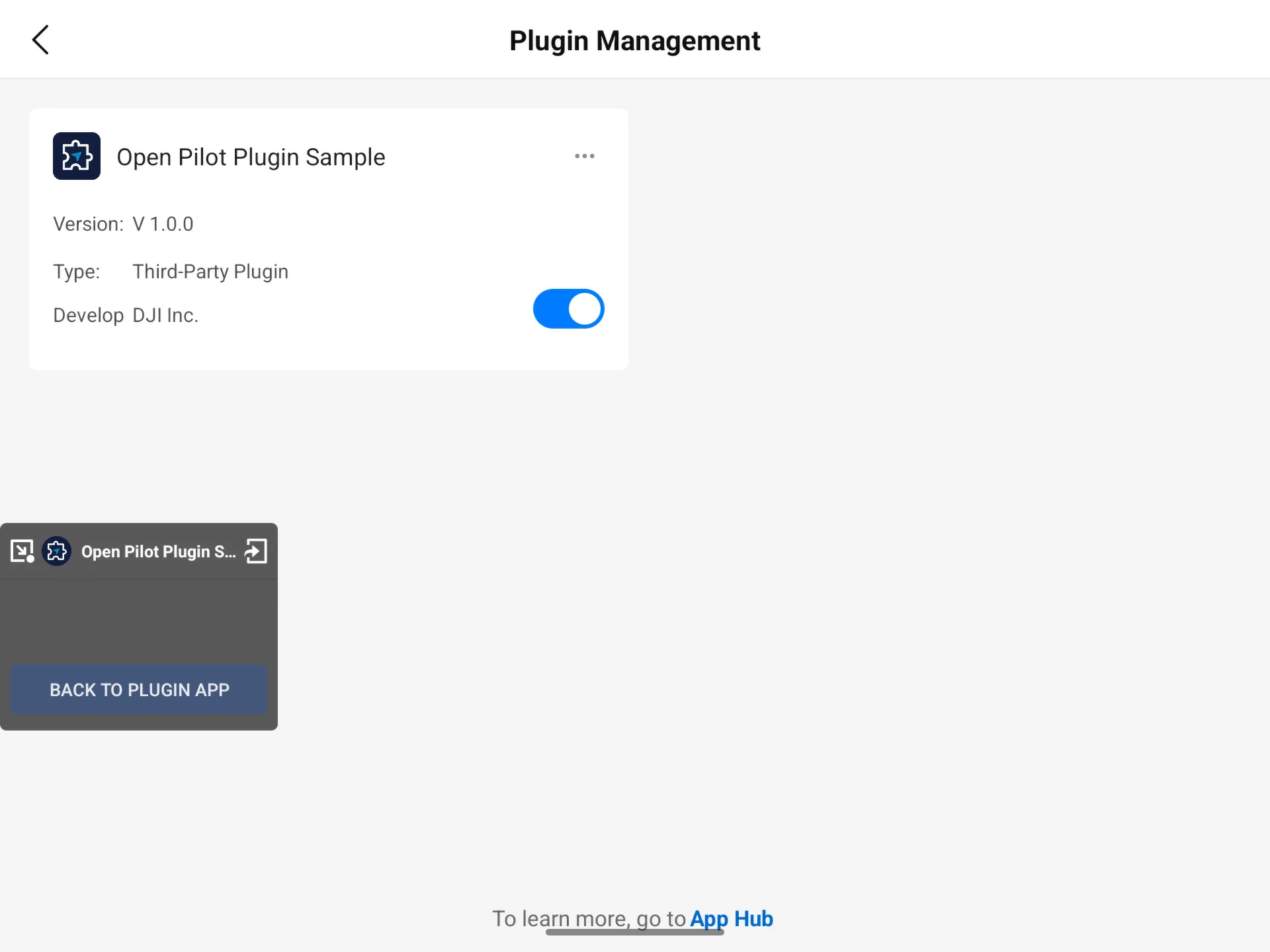
After installation on the remote controller, a plugin is automatically recognized and managed by Pilot. Once the user enables it and the connection is established, the plugin can call open capabilities and be opened from the plugin floating window.
- Install the plugin APK.
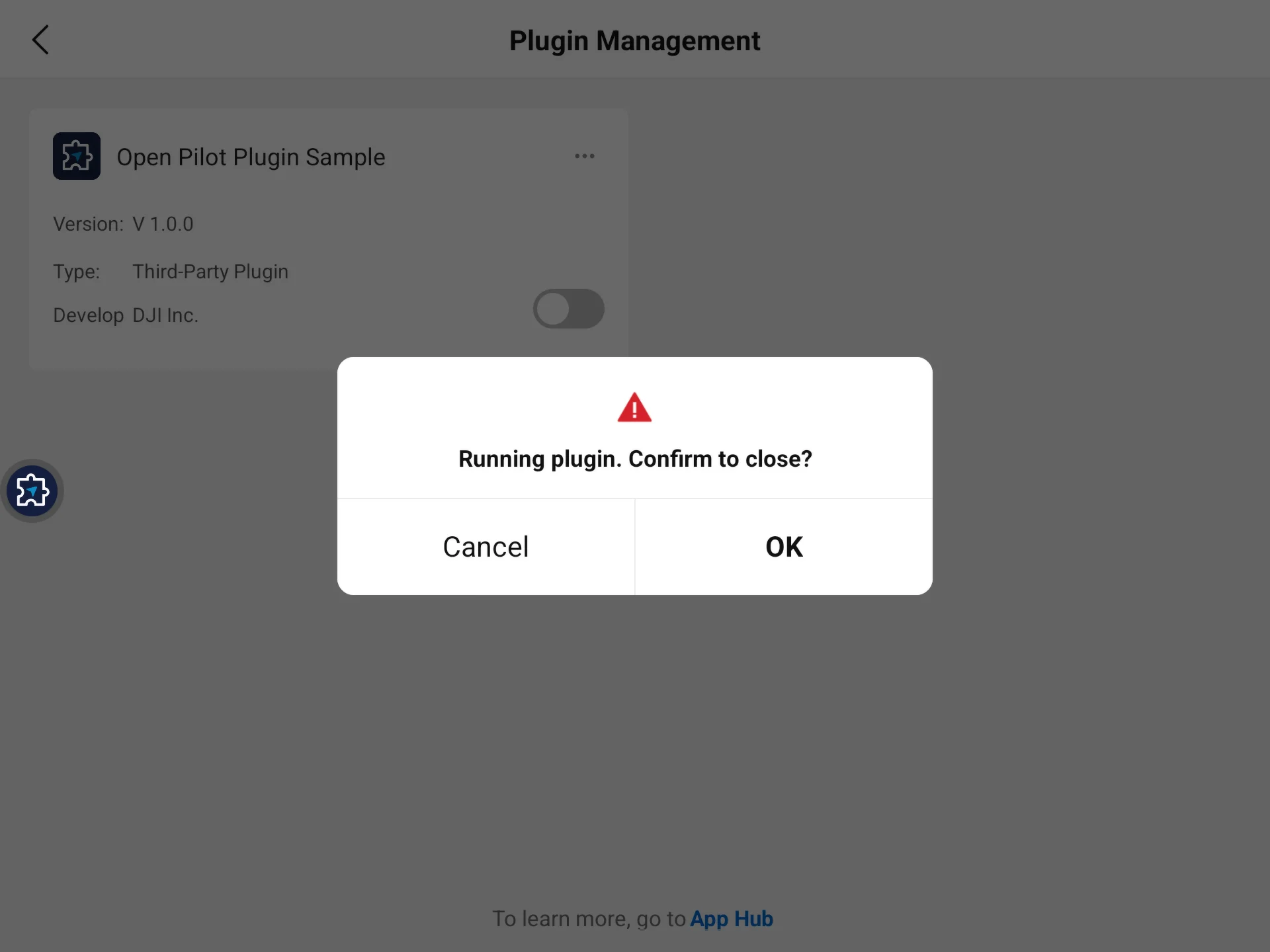
- Enable the plugin on Pilot's plugin management page.
- Wait for the plugin to connect to Pilot.
- Open the plugin from the floating window and use its industry features.
- Disable the plugin on the management page when it is no longer needed.
Note: The plugin interface contract must be compatible with the Pilot version. MSDK checks compatibility automatically when connecting.
Next Steps
- Read the Capability Map to learn which capabilities a plugin can use.
- Follow the Quick Start to create your first plugin project.
- Read the Module Example for minimal examples of each capability.