
Overview
Open Pilot Wizard (OPW) is a toolkit that helps you develop Pilot plugins with AI. After you install OPW into an AI coding tool (AI tool for short), you describe what you need in natural language, and the AI uses the plugin development knowledge and workflows provided by OPW to help you create projects, develop features, migrate MSDK apps, or answer capability questions.
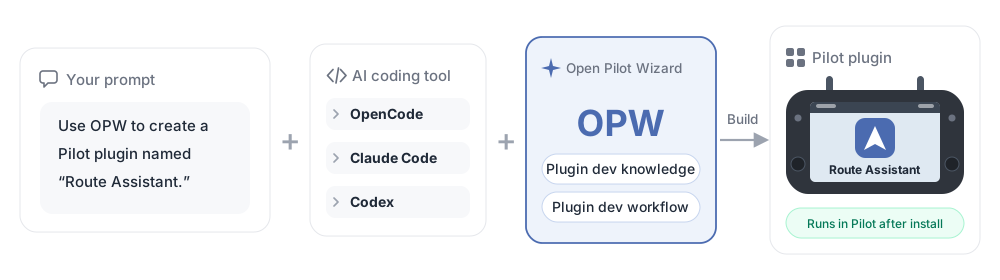
OPW currently supports three AI tools: OpenCode, Claude Code, and Codex. To get started right away, see the Quick Start.
Why You Need OPW
A Pilot plugin is a standalone Android app installed on the Remote Controller. It runs in a separate process from Pilot and connects to it through the SDK. Beyond business logic, you also have to handle plugin identity declaration, App Key binding, MSDK and UXSDK version matching, debugging on a Remote Controller with a screen, and other configuration and constraints.
A general-purpose AI model does not know these domain details. If you ask it to write plugin code directly, the common result is code that looks right but fails to compile, or a plugin that Pilot cannot recognize after installation.
OPW turns this domain knowledge and development process into capabilities the AI can use directly: the AI checks the evidence before acting, follows fixed steps, and validates the result before delivery. The AI still understands the request and writes the code, and you still confirm the key decisions.
Architecture
OPW consists of four layers: the orchestration layer receives your request and dispatches it to the Skill layer; the knowledge base layer and the OpenSpec layer sit side by side under the Skill layer, providing it with evidence and recording the development process.
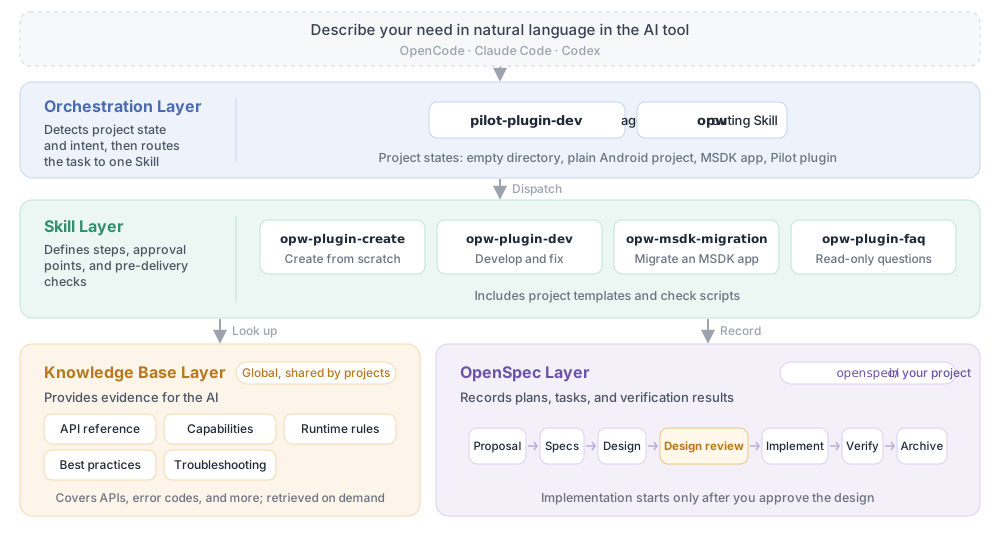
The four sections below each use a concrete example to explain what the layer solves and how it works.
Orchestration Layer
The orchestration layer is the single entry point of OPW. After you describe your need, it first identifies the state of the current directory (an empty directory, a plain Android project, an MSDK app, or an existing Pilot plugin), and then hands the task to the one Skill that matches your intent. If the project state and your intent do not match, for example you ask to migrate an MSDK app inside an existing plugin project, the orchestration layer asks you to confirm instead of guessing.
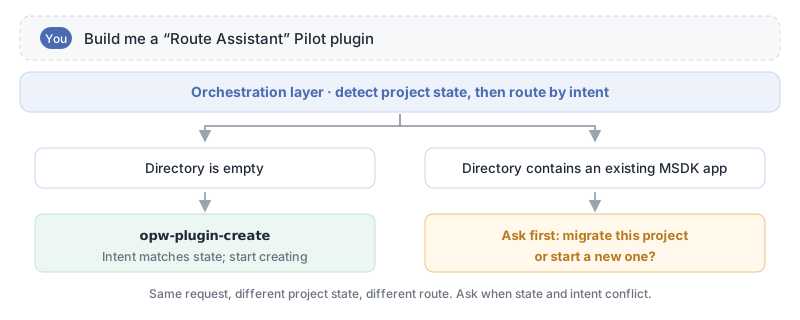
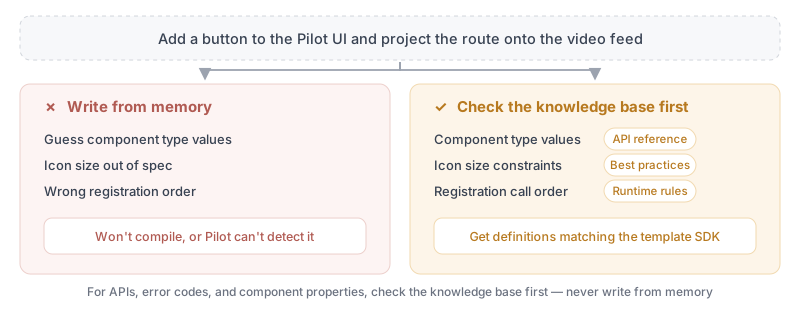
The orchestration layer also enforces basic rules for the AI: for APIs, error codes, and component properties, the AI must check the knowledge base instead of writing from memory; the checks defined by a Skill must run and cannot be skipped.
How you enter the orchestration layer depends on the AI tool:
- OpenCode: press Tab to switch to the
pilot-plugin-devagent, or use@pilot-plugin-devin your message. - Claude Code: run
/output-style pilot-plugin-devto switch to this output style, and run/output-style defaultto switch back. - Codex: no switching is needed. The
opwSkill is the entry point of the orchestration layer, so describe your need directly or invoke theopwSkill.
For other AI tools such as CodeBuddy and Trae, you can let the AI adapt OPW by referring to the installed OPW content. See Use OPW in Other AI Tools.
You can also skip the routing of the orchestration layer and invoke the matching task Skill (such as opw-plugin-create) directly. In this case, you choose the task type yourself, and the Skill still follows the OpenSpec workflow internally, with plan approval and pre-delivery checks as usual. For details, see Usage.
Skill Layer
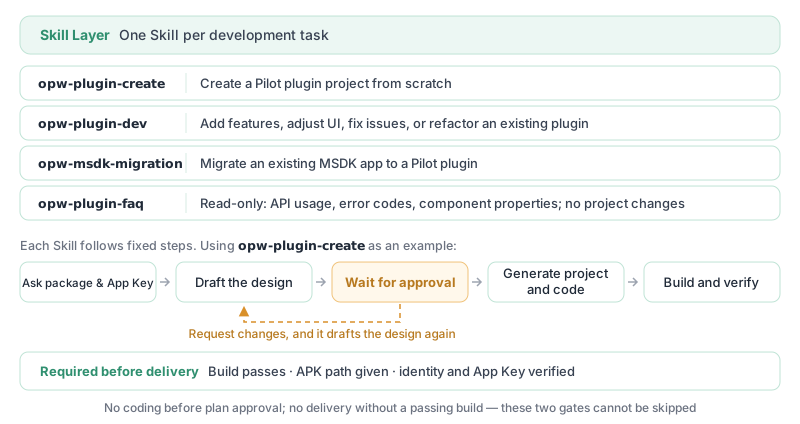
Each Skill covers one type of development task. It defines what the AI does first and next, which points must wait for your approval, and which checks must pass before delivery:
Knowledge Base Layer
The knowledge base is where the AI looks up evidence. It is synced to your computer when you install OPW and shared by all projects. It mainly includes:
- API reference: interface definitions of MSDK and Pilot plugins, aligned with the SDK version used by the template.
- Capability documentation: how to use each MSDK capability and Pilot open capability.
- Runtime rules: common pitfalls in call timing, resource release, and error handling.
- Best practices: project architecture, coding standards, and design specifications for native plugin pages and UI embedded in Pilot.
- Troubleshooting: how to diagnose SDK initialization, permission, and build issues.
The AI retrieves only the content relevant to the current task instead of loading the entire knowledge base at once.
OpenSpec Layer
OpenSpec is an open-source, spec-driven development framework. OPW uses OpenSpec to manage each development task. It splits a task into stages such as proposal, requirement specs, design, design review, implementation, verification, and archiving, and saves the documents for each stage in the openspec/ directory of your project.
This layer provides three benefits:
- Plan first, code later: the AI starts implementation only after you approve the design.
- Resume after interruption: if a session is interrupted, the AI restores progress from the saved documents instead of starting over.
- Traceable process: requirement specs, designs, and verification records can be committed to Git for team review.
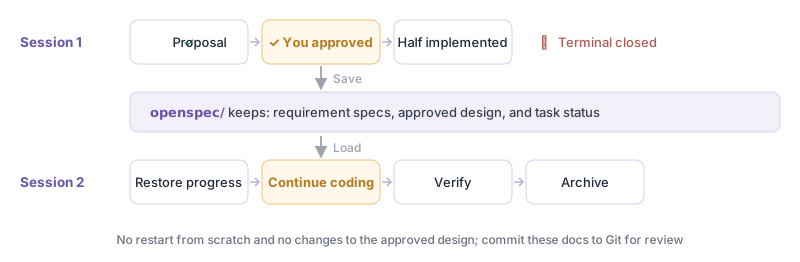
Skills call OpenSpec internally, so you do not need to learn or run OpenSpec commands. In the conversation, the AI refers to these stages with names such as "task," "design," and "design review." Capability questions alone do not create a development task.
What to Expect
- OPW reduces the time you spend reading documentation and setting up projects, but it does not guarantee that your business logic is correct. Scope, acceptance criteria, and release decisions remain yours.
- A successful build, a successful installation, and correct runtime behavior are three separate results. Confirm each one separately.
- For core modules involving performance, flight safety, or deep customization, review the AI-generated code carefully.
Next Steps
- Follow the Quick Start to install OPW and create your first plugin.
- Read Usage for how to work with the AI on each type of task, a complete case, and common commands.